Manual approval steps are central to our workflow engine, blending automation with human oversight. This reflects our understanding that critical automated processes often require expert review. Taking inspiration from FinOps' shift-left principles, we've designed our approval system to foster collaboration between FinOps teams and engineers. By incorporating deliberate pause points for feedback and guidance, we ensure thoughtful decision-making in automated processes while building accountability across teams

What is the Approve Step?
The Approve step is a flow control mechanism that pauses workflow execution pending human approval. It's designed for scenarios where automated processes require human verification before proceeding with critical actions.
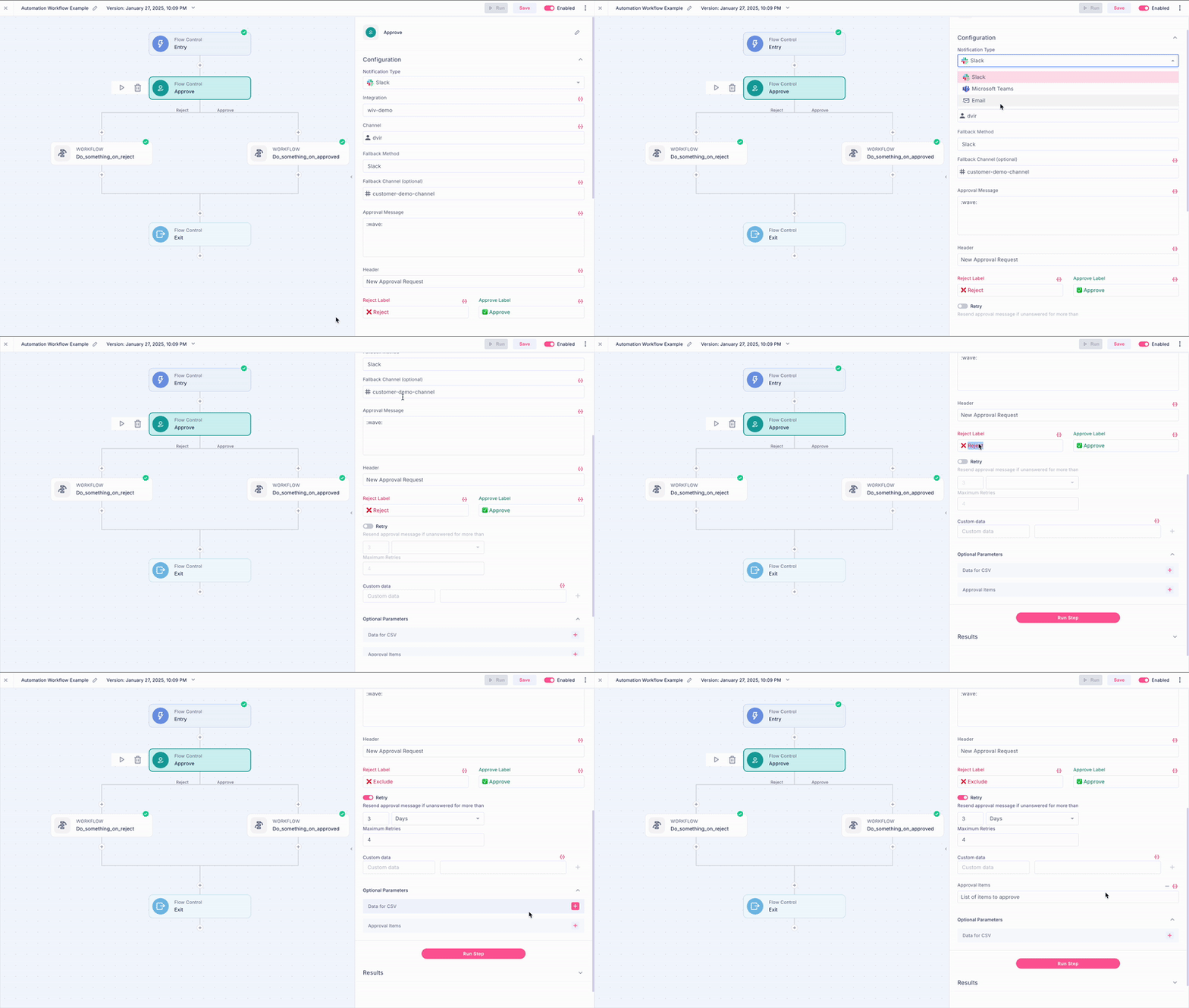
Setting Up the Approve Step
Select Notification Type
Choose how you want to send the approval request. We currently support:
Slack
Teams
Email
Note
Slack and Teams integration must be configured prior to implementing the Approve step
Configure Notification Method
For Slack/Teams:
- Channel (Slack) / Member (Teams): Select where to send the approval message.
- Fallback Channel (optional): Set a default channel for messages if the original recipient is unavailable.
For Emails:
- Add the relevant recipients
Configure Approval Message
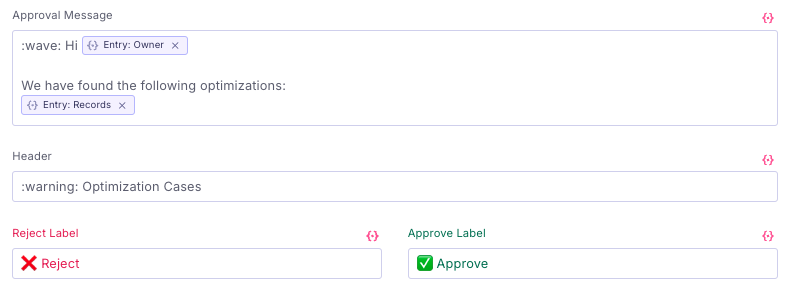
Based on the notification settings you selected, you will have the following options to create your message:
- Header/Subject: The subject or title of the message.
Approval Message (Slack/Teams): Request approvals through your team messaging apps, with support for icons and custom formatting to enhance your message design
Body (Email): Compose approval requests using either plain text or HTML formatting with inline styles that are email-client friendly
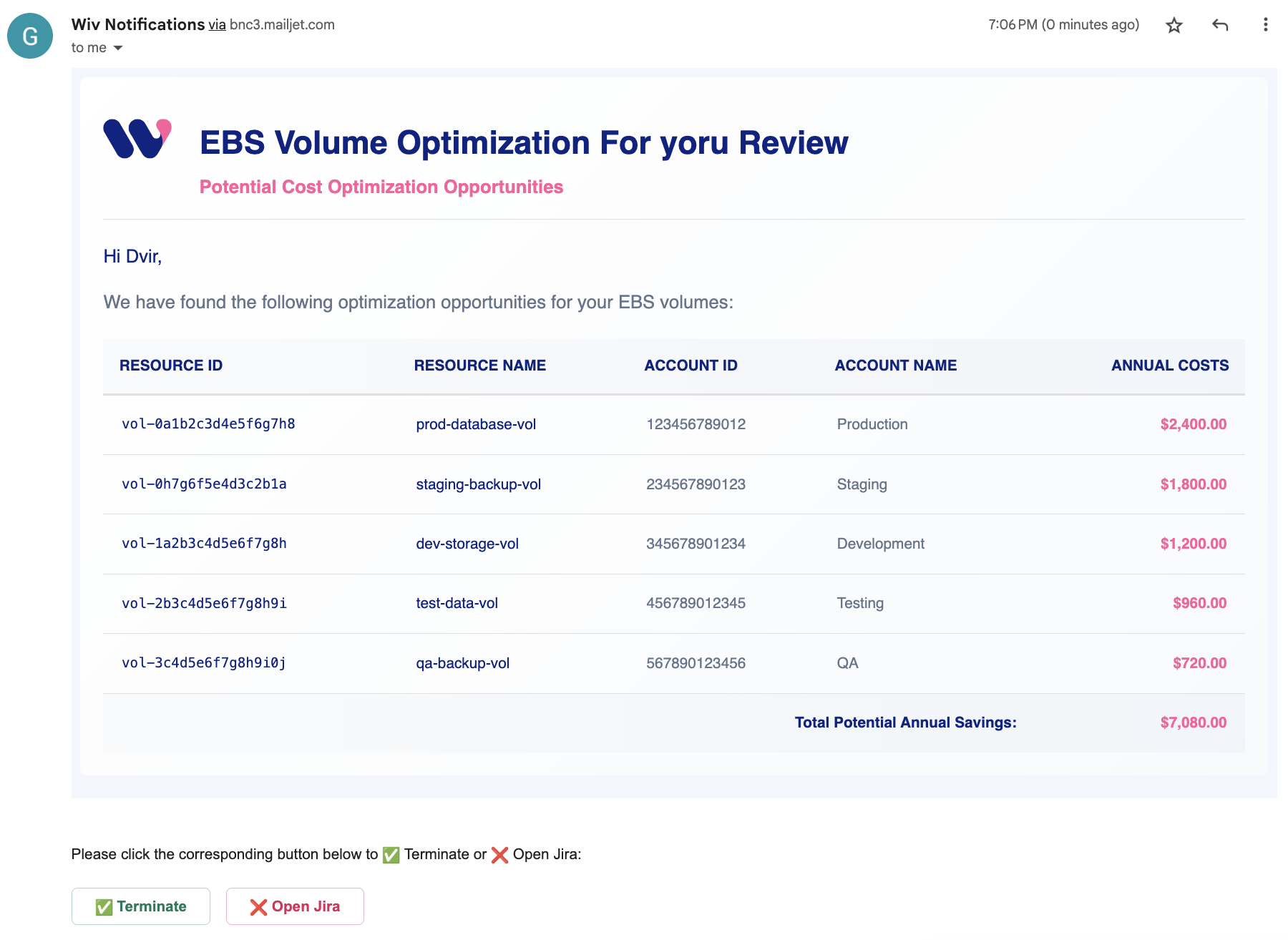
Reject Label / Accept Label: Customize the approval and rejection button text to clearly indicate the action's outcome (for example, when reviewing anomaly alerts, you might use "Confirm Anomaly" / "Dismiss Alert"). This helps users understand the consequences of their selection and improve the feedback loop context
Using Email Buttons vs Link
The inline email approval feature adds interactive buttons directly in your emails. However, if your organization uses security scanning that automatically tests all clickable elements, these scans might unintentionally trigger approvals or rejections.

For organizations with such security measures, we recommend disabling inline approvals. When disabled, the system will instead provide a link to our platform where you can safely take action.

Set Up Retry Mechanism and Timeout Behavior
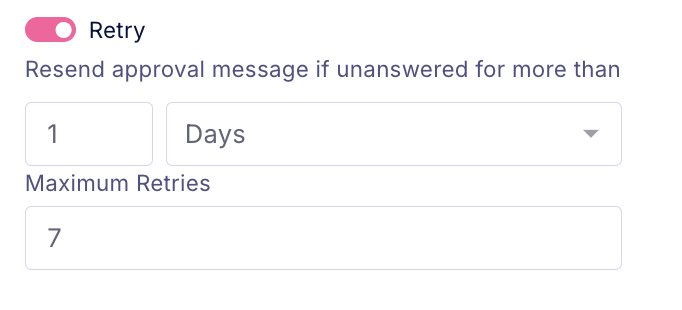
The retry automation feature helps you manage unresponsive approvals. Set urgency-based reminder intervals, and the system will automatically send gentle nudges to recipients who haven't acted on your request. This ensures no approval gets lost in the shuffle and helps you track pending responses without manual intervention.
Pro Tip
To set a timeout without retries, set the Maximum Retries to 0
Timeouts
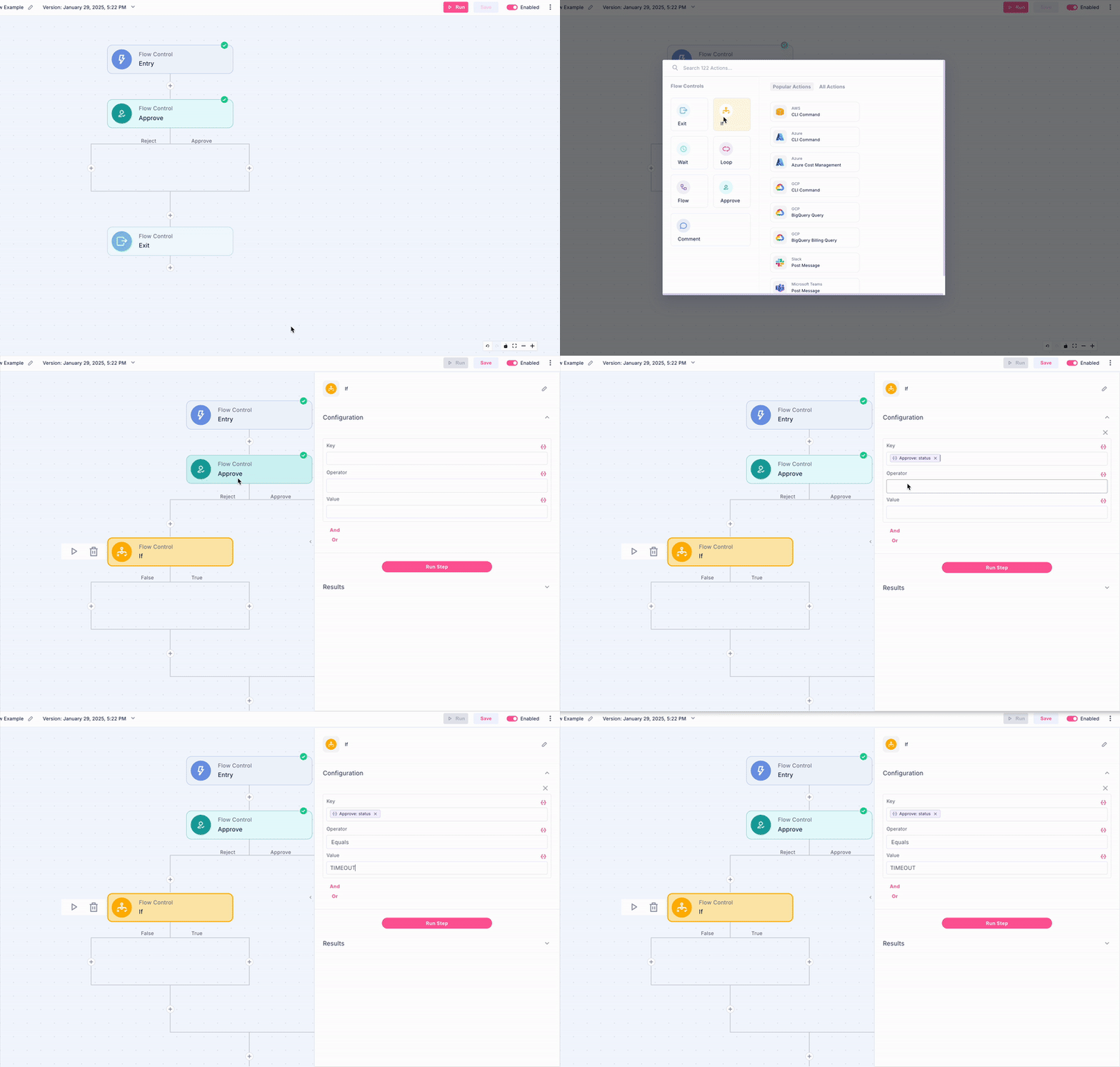
If the user doesn't respond within the specified timeout period, the workflow will automatically proceed to the reject branch. To distinguish between a manual reject and a timeout, add a condition in your reject branch
- Go to the Reject line and add an If step
- You can rename the step to Is_Timeout
- In the Key input, add {{Approve_Step_Name.status}} where Approve_Step_Name is the name of the Approve step that you named in your workflow. The default value is Approve
- Select the Equals Operator
- Add TIMEOUT in the Value input
Add Custom Data
Enhance your approval tracking with custom metadata fields. By adding key-value pairs to your approvals, you can include additional context that appears as columns in the Approvals dashboard. This extra information helps administrators better understand and manage approval requests.

Important: These custom fields are only visible to administrators in the Approvals dashboard, not to approval recipients.
With Custom Fields

Without Custom Fields

Partial Approval
Partial approval is a type of approval step in which the user can choose to approve a subset of items from a list. To create a partial approval step, fill the field with the label Approval Items
The value should be one of the following
A reference to a list of dictionaries using the Step Parameters
Hard coded list of dictionaries
for example:
[
    {
     'instance_id': 'i-1b1b1b1b1b1b1b1b11',
     'instance_name': 'test-instance1',
     'instance_type': 't2.micro'
    },
    {
      'instance_id': 'i-2b1b1b1b1b1b1b1b',
      'instance_name': 'test-instance2',
      'instance_type': 't2.nano'
    }
]
The step will then send a link to a form (in our application). The form will include a list in a table format, each row will be one item in the list. The user then can select the rows to approve.
Partial Approval step output
The output of a partial approval step is in the following format:
{
'result': 'approve'/ ‘reject’, # the action that was chosen (the button on the bottom of the form)
'approved_items': [...], # the list of approved items (will be empty if result is ‘reject’)
'rejected_items': [...] # the list of rejected items (will be all items if result is ‘reject’)
}
A standard partial approval flow might look like this: 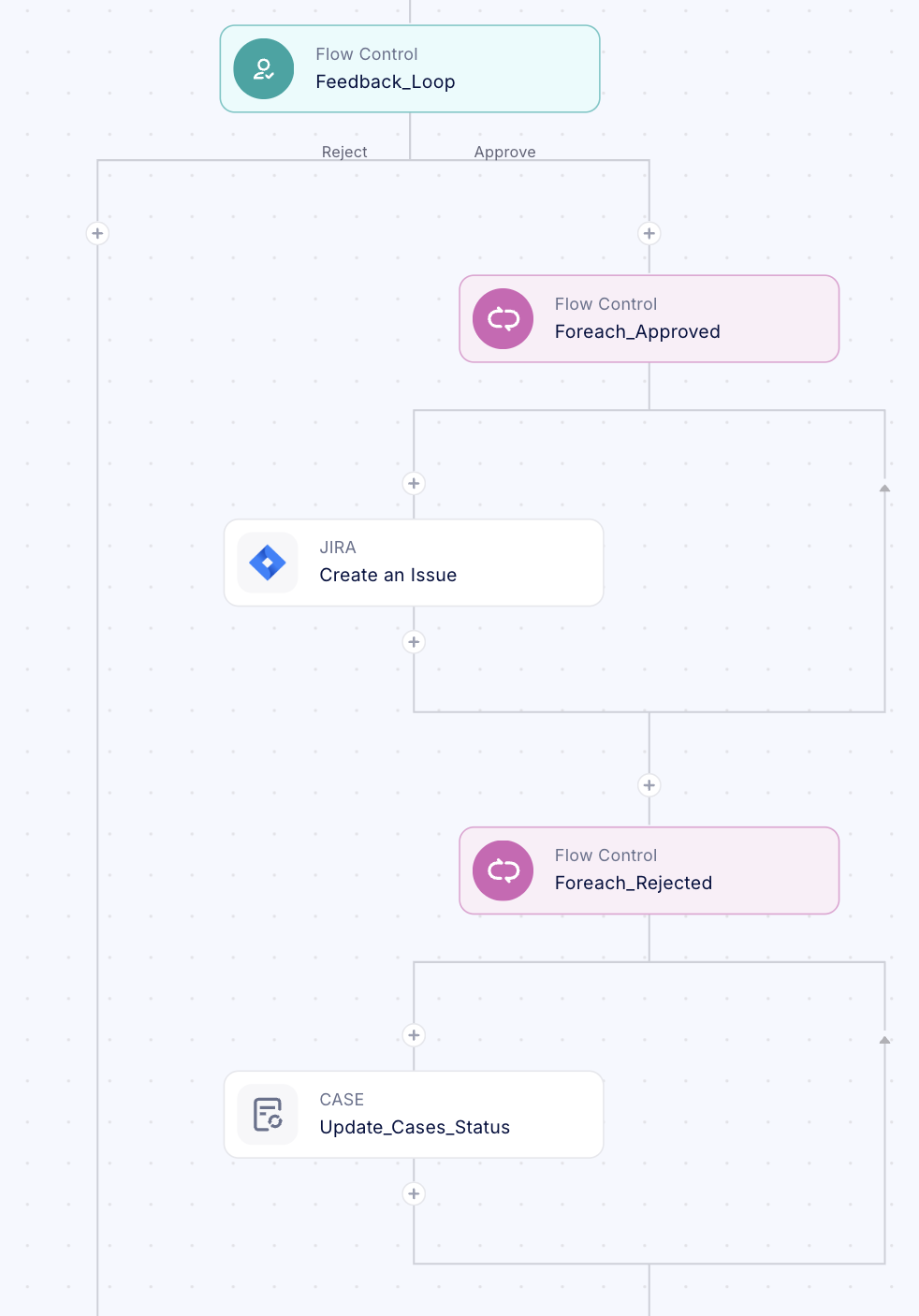
We have added our list to the Approval Items parameter

Now we can access the response using the Advanced Mechanics by utilizing the {{step_name.output}} format. In this case, as our Approve step is called Feedback_Loop we can access the approved items by accessing:
{{Feedback_Loop.output.approved_items}}And our rejected items by accessing:
Summary
By using the Approve step effectively, you maintain human oversight in your automation processes, ensuring accuracy and control in your FinOps workflows, while also handling cases where immediate response isn't possible.
Was this article helpful?
That’s Great!
Thank you for your feedback
Sorry! We couldn't be helpful
Thank you for your feedback
Feedback sent
We appreciate your effort and will try to fix the article