Salesforce Integration Onboarding
This guide explains how to create a Salesforce External Client App, connect it to Wiv using OAuth, and start using Salesforce steps inside Wiv workflows.
What you will set up
Create a Salesforce External Client App named Wiv
Configure OAuth (callback URL, scopes, flow, and security)
(Recommended) Restrict who can authorize the app
Copy Consumer Key and Consumer Secret
Create the integration in Wiv
Use Salesforce steps in Wiv workflows (Get, Create, etc.)
Prerequisites
Salesforce Admin access (or permissions to create/manage External Client Apps)
A Salesforce user to authorize the integration
Part A - Salesforce setup (External Client App)
Step 1: Open External Client App Manager
In Salesforce, go to Setup
Search for External Client App Manager
Open External Client App Manager
Click New External Client App
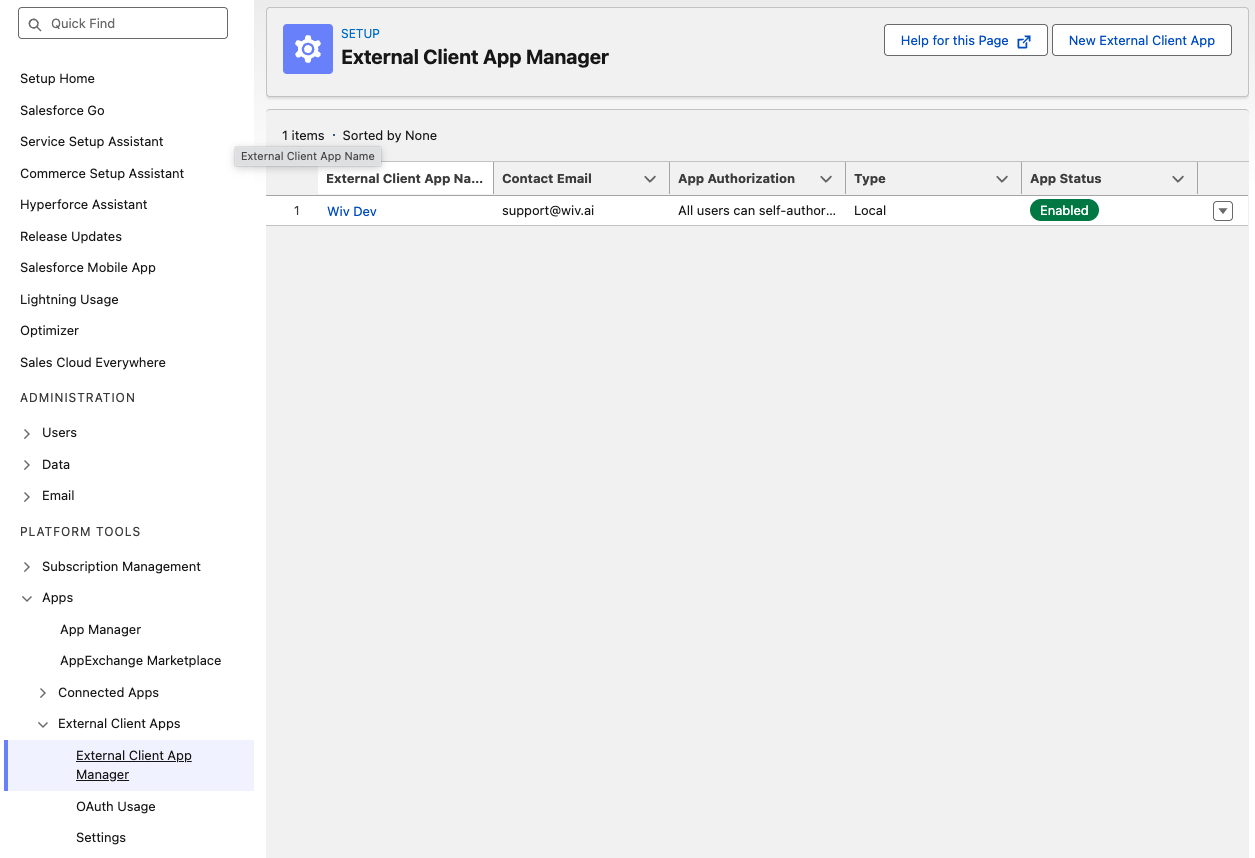
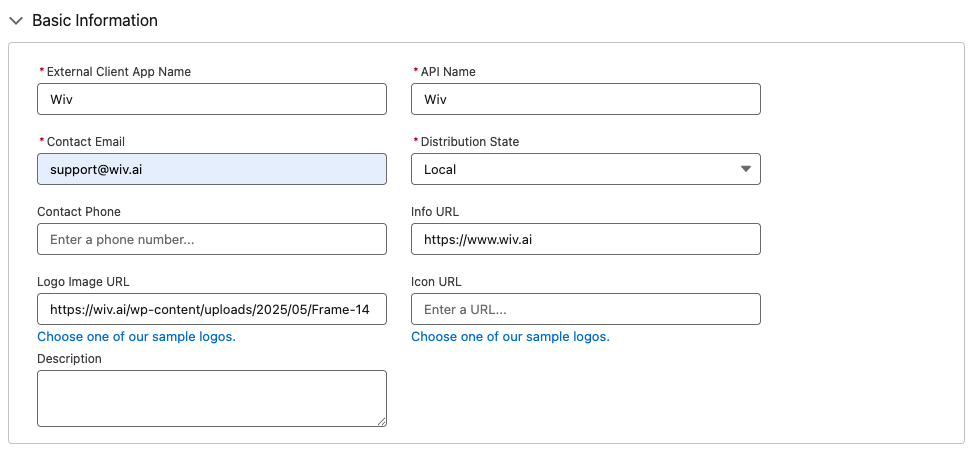
Step 2: Fill Basic Information
In Basic Information, set:
External Client App Name:
WivAPI Name:
Wiv(or let Salesforce auto-fill)Contact Email:
support@wiv.aiDistribution State:
LocalInfo URL:
https://www.wiv.aiLogo Image URL:
https://wiv.ai/wp-content/uploads/2025/05/Frame-1410192134.svg
Optional fields (Phone, Icon URL, Description) can be left empty, or add:
“Wiv integration for Salesforce via OAuth.”
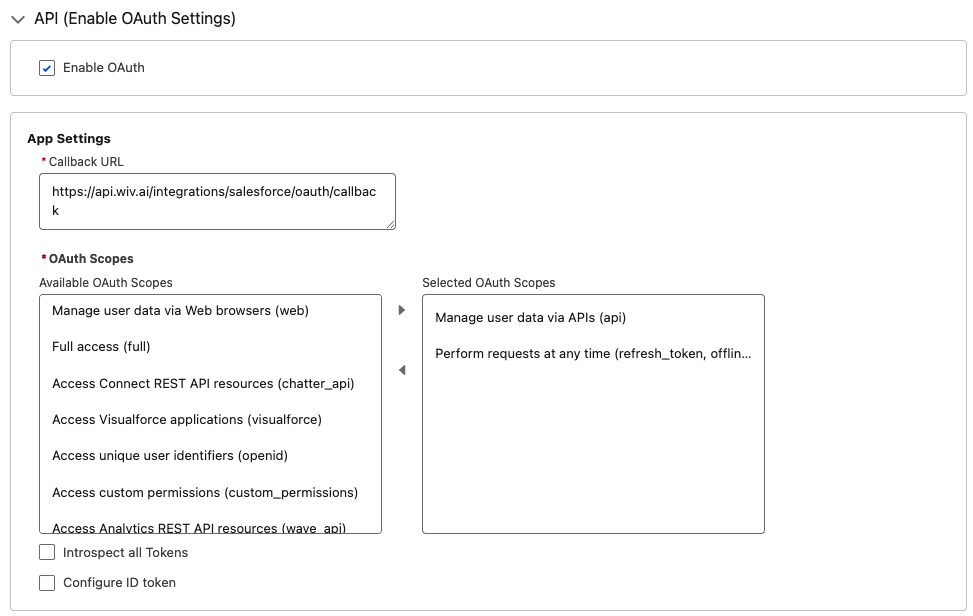
Step 3: Enable OAuth and configure it
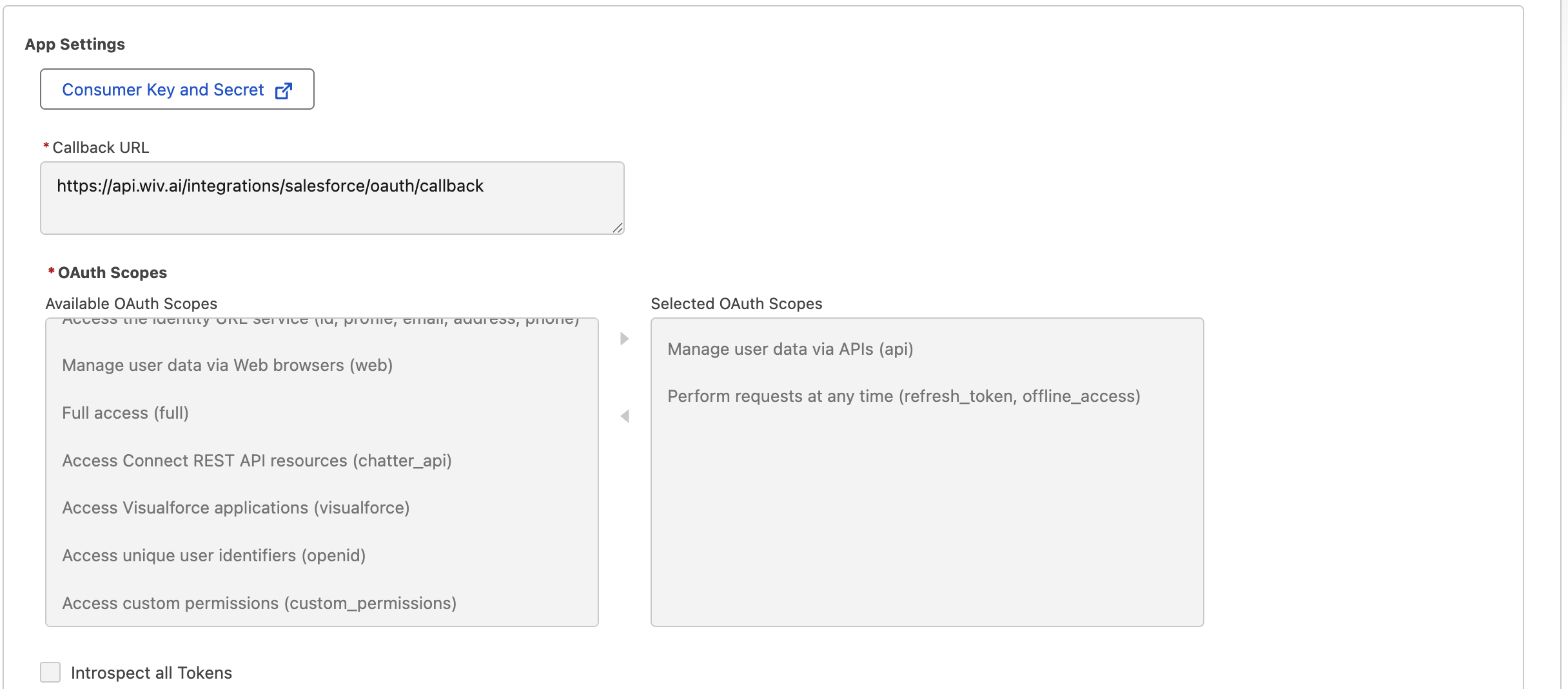
Expand API (Enable OAuth Settings) and configure:
3.1 Enable OAuth
Check Enable OAuth
3.2 Callback URL
Set Callback URL to:
https://api.wiv.ai/integrations/salesforce/oauth/callback
3.3 OAuth Scopes
Move the following to Selected OAuth Scopes:
Manage user data via APIs (api)
Perform requests at any time (refresh_token, offline_access)
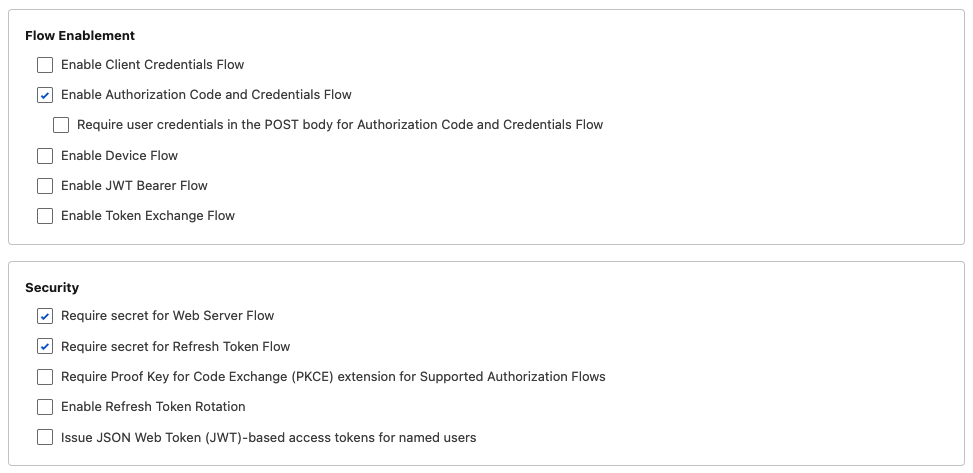
Step 4: Configure OAuth flow and security
4.1 Flow Enablement
Enable:
Authorization Code and Credentials Flow
4.2 Security
Enable:
Require secret for Web Server Flow
Require secret for Refresh Token Flow
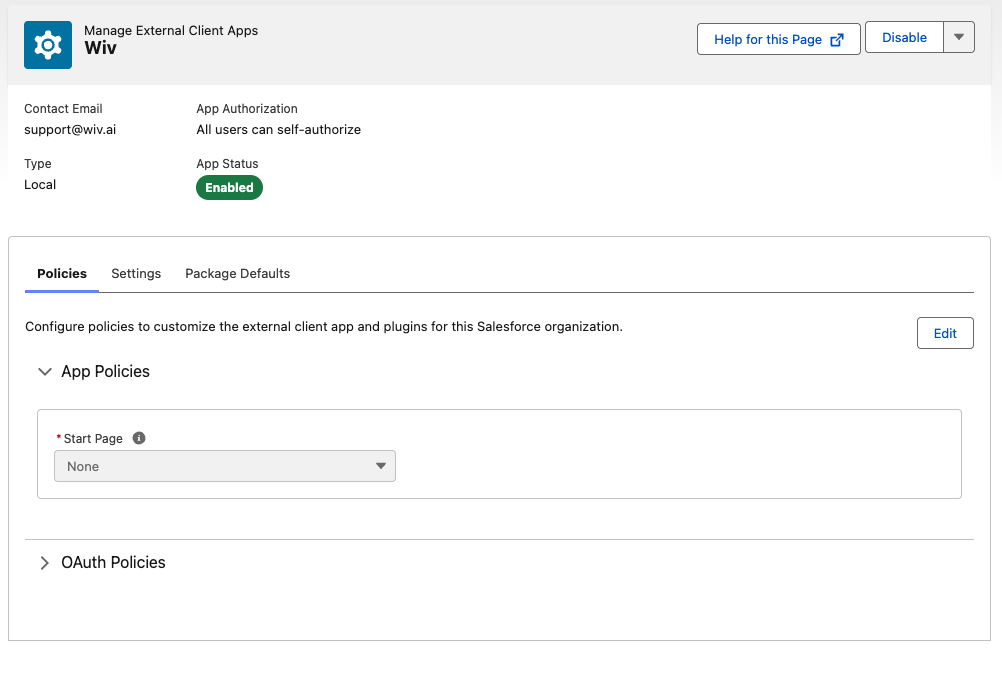
Step 5: Confirm the app is Enabled
Return to External Client App Manager
Open your app (Wiv)
Confirm App Status is Enabled
Optional: Restrict who can authorize the app
For production orgs, it is typically safer to restrict who can authorize/use the integration instead of allowing “All users can self-authorize”.
Step 5.1: Set “Admin approved users are pre-authorized”
In Salesforce Setup, go to External Client App Manager
Open Wiv
Go to the Policies tab
Click Edit
In OAuth Policies, set Permitted Users to:
Admin approved users are pre-authorized
Click Save
Steps:
Under Select Permission Sets, choose the permission set intended for the integration user (example: a permission set named “Integration User” in your org)
Move it to Selected Permission Sets
Save
Then assign the permission set to the integration user:
Go to Setup -> Users -> Users
Open the integration user
Under Permission Set Assignments, add the permission set you selected
Save
Notes:
Use Profiles only if you intentionally want all users in that profile to be allowed.
If you set “Admin approved users are pre-authorized” but do not select any Profile/Permission Set, nobody will be able to authorize the app.
Step 6: Where to find the Consumer Key and Consumer Secret
After saving the app, Salesforce generates OAuth credentials for it.
In Salesforce, go to Setup
Search for External Client App Manager
Open External Client App Manager
Click the app Wiv
Open the Settings tab (sometimes named Settings or App Settings depending on Salesforce UI)
In the OAuth/API section, copy:
Consumer Key
Consumer Secret
Notes:
The Consumer Secret may be hidden. Click Reveal (or similar) to show it.
If you regenerate/rotate the Consumer Secret later, you must update it in Wiv.
Part B - Recommended: Use a dedicated Wiv user
Wiv’s permissions are determined by the Salesforce user who authorizes the OAuth connection. Using a dedicated Wiv user is safer and prevents outages.
Why it is recommended
Security: you can enforce least privilege (read-only, or limited write)
Stability: the integration does not break when an employee leaves or changes roles
Auditability: actions are clearly attributed to the integration user
How to set it up
Create a dedicated Salesforce user:
Setup -> Users -> Users -> New User
Name example:
Wiv IntegrationUse a controlled mailbox/username
Choose a minimal profile that supports API access
Grant access using Permission Sets (preferred):
Create a permission set:
Wiv
Configure:
Required objects (Create + Read)
Case: Read + Create
Opportunity: Read + Create
Lead: Read + Create
Avoid unless you explicitly need updates/deletes from Wiv:
Edit
Delete
Required related objects (Read only)
In most Salesforce orgs, these are needed to set relationships or lookups when creating records:
Account: Read (commonly needed for Opportunity, often for Case)
Contact: Read (commonly needed for Case, optional for Opportunity)
User: Read (needed if setting record owner to a user)
RecordType: Read (needed if selecting Record Type in Wiv)
Optional, only if you assign ownership to queues:
Group / Queue: Read
Field Level Security Requirements (FLS)
Object permissions are not enough. Field Level Security must allow Wiv to write the fields it sets.
6.1 Case - Fields (Edit access required)
Grant Edit access to all fields Wiv may set, including required fields in your org.
Typical minimum:
SubjectStatusOriginDescription(optional)RecordTypeId(if record types are used)AccountId(if linking to account)ContactId(if linking to contact)OwnerId(if assigning owner)Any required custom fields (org-specific)
6.2 Lead - Fields (Edit access required)
Typical minimum (depends on org configuration):
LastName(commonly required)Company(commonly required)Email(optional)Phone(optional)Status(often required)RecordTypeId(if used)Any required custom fields (org-specific)
6.3 Opportunity - Fields (Edit access required)
Typical minimum:
NameStageNameCloseDateAmount(optional)AccountId(commonly required)RecordTypeId(if used)OwnerId(if assigning owner)Any required custom fields (org-specific)
6.4 Read access (recommended)
Grant Read access to:
the record Id fields returned after creation
fields you want to use later in workflows (for example: CaseNumber, Opportunity Name)
Assign the permission set(s) to the integration user:
Open the user -> Permission Set Assignments -> add the permission set(s)
Authorize Wiv using this user:
When Wiv redirects to Salesforce for authorization, log in as the dedicated integration user
Part C - Create the integration in Wiv
Step 7: Create the Salesforce integration in Wiv
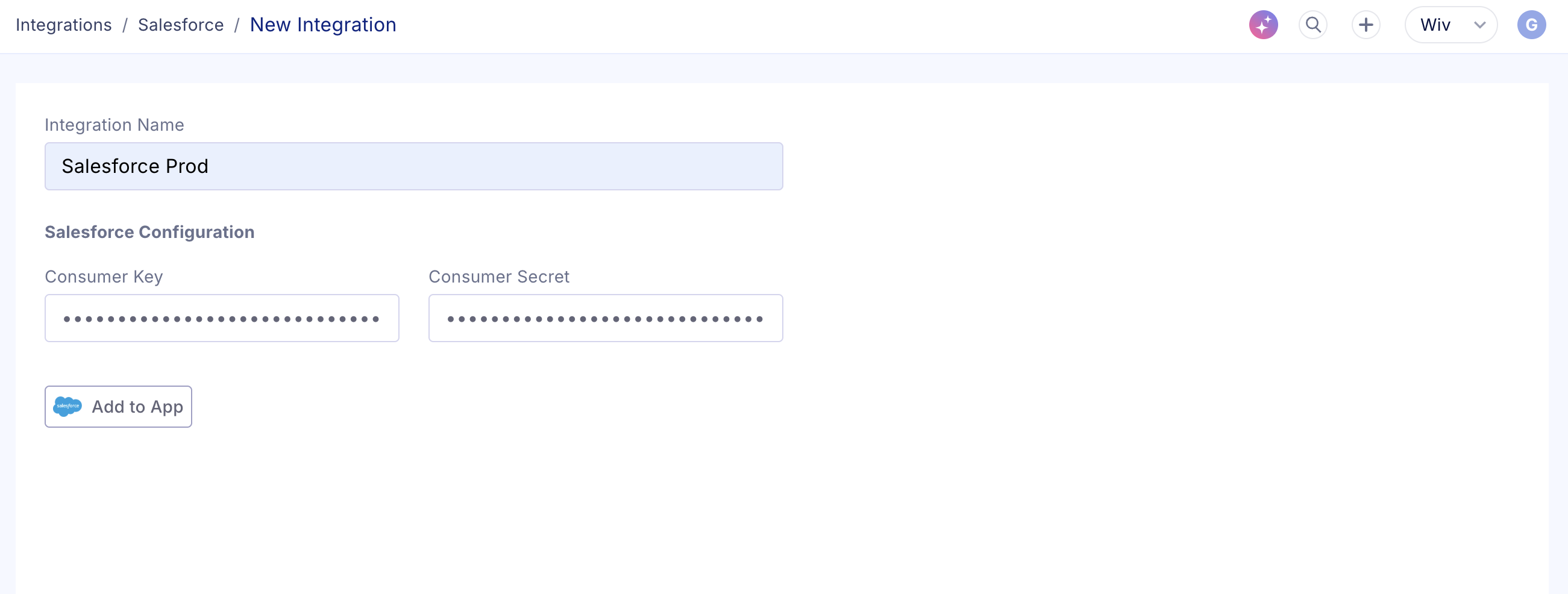
In Wiv, go to Integrations
Select Salesforce
Click New Integration
Fill:
Integration Name:
Salesforce ProdConsumer Key: paste from Salesforce
Consumer Secret: paste from Salesforce
Click Add to App
You will be redirected to Salesforce to authorize
Log in as the Salesforce user you want Wiv to operate as (recommended: the dedicated integration user)
Approve access
After approval, you should return to Wiv and see the integration connected.
Part D - Use Salesforce in Wiv workflows
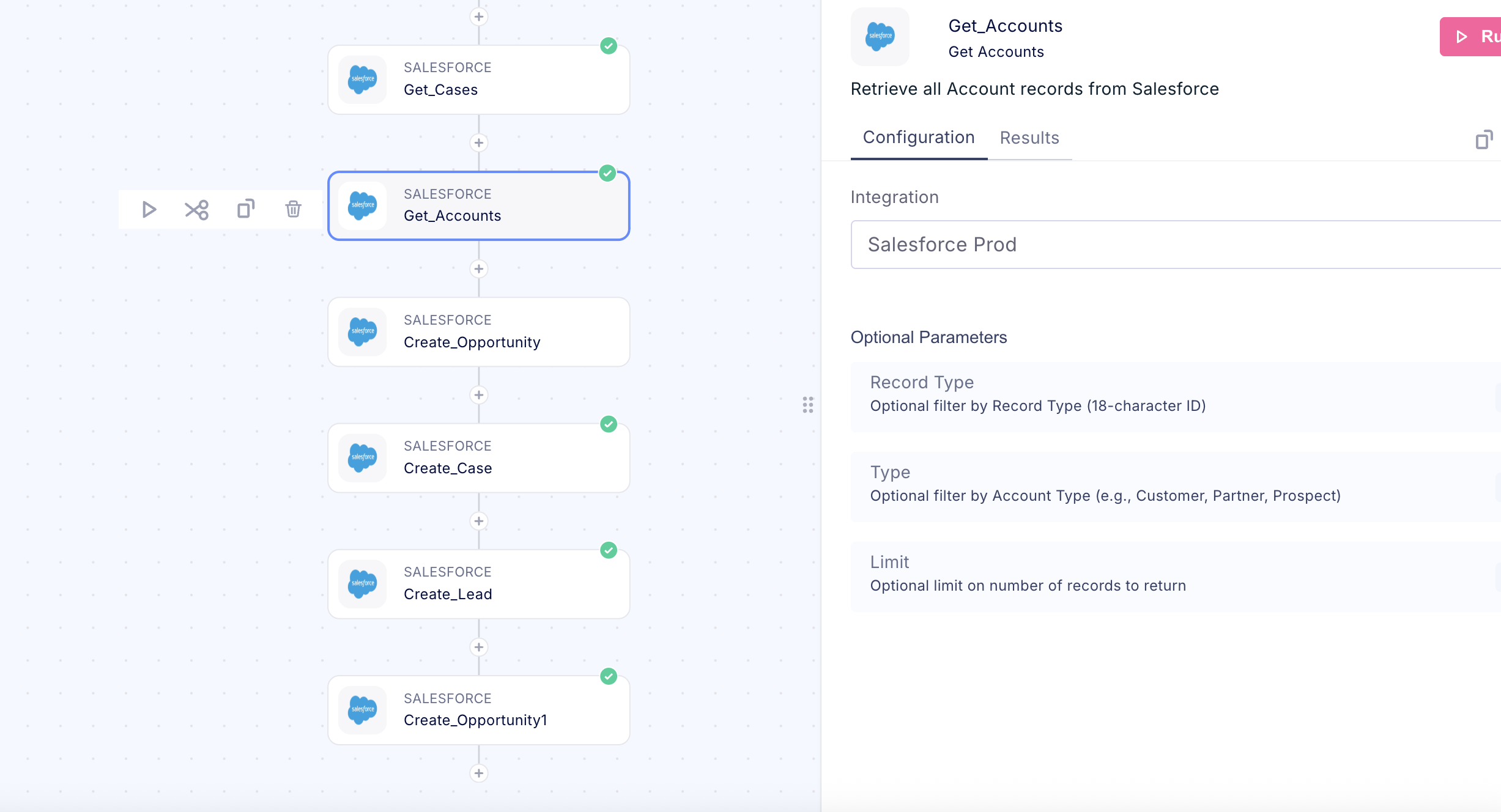
Step 8: Add a Salesforce step
Open a workflow in Wiv
Click + to add a step
Choose Salesforce
Select an action, for example:
Get Accounts
Get Cases
Create Lead
Create Case
Create Opportunity
Troubleshooting
Redirect URI mismatch
Callback URL must match exactly:
https://api.wiv.ai/integrations/salesforce/oauth/callback
Invalid client / bad credentials
Re-check Consumer Key and Consumer Secret
Confirm the app is Enabled
Insufficient scope
Confirm scopes include:
apirefresh_token, offline_access
Picklist / Status / Origin validation errors
Often caused by wrong/missing Record Type
Select Record Type first and retry
Integration stops working later
Common causes:
The Salesforce user was deactivated/locked
App policy changed to admin-approved but Profiles/Permission Sets were not approved
Consumer Secret was rotated in Salesforce and not updated in Wiv
What to send to Wiv Support (if needed)
Include:
Salesforce org type (Production or Sandbox)
Screenshot of OAuth scopes + callback URL
The integration name in Wiv (example:
Salesforce Prod)The exact error message from Wiv step run
Support email: support@wiv.ai
Was this article helpful?
That’s Great!
Thank you for your feedback
Sorry! We couldn't be helpful
Thank you for your feedback
Feedback sent
We appreciate your effort and will try to fix the article