Creating a Workflow in Wiv is a straightforward process that can empower your operations with automation. In this guide, we'll walk you through the process of creating a workflow that retrieves all unattached EBS instances in the N. Virginia region and sends a notification with the list via Slack.
Step 1: Start a New Workflow
Navigate to the Workflow page within in the General Space.
Click on the "New Workflow" button to create a fresh workflow.
Step 2: Retrieve Unattached EBS Instances
Under the Entry step, press the (+) sign to open the available Steps
Search for the Describe EBS Volumes Combo Step
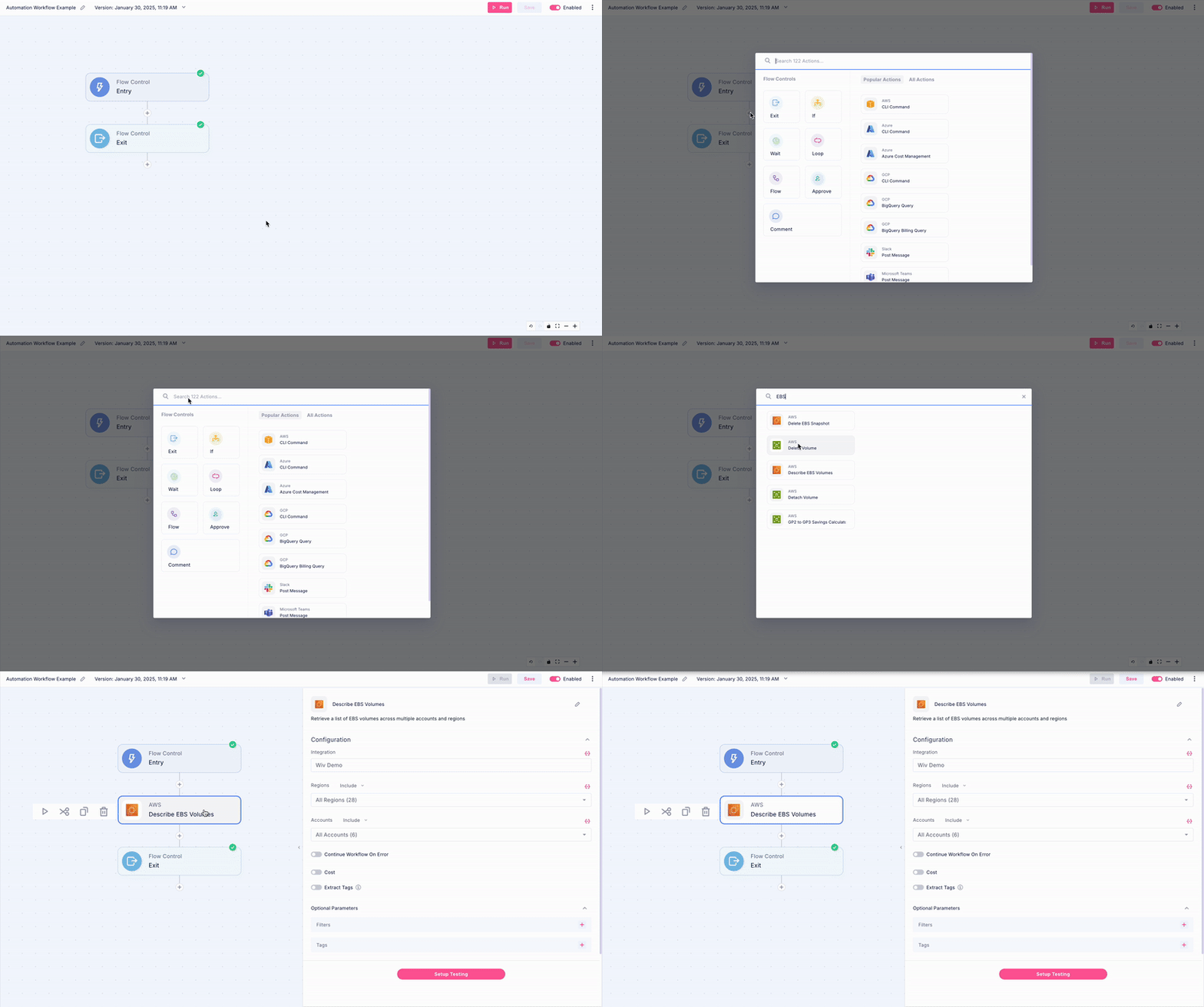
Select the relevant AWS Integration
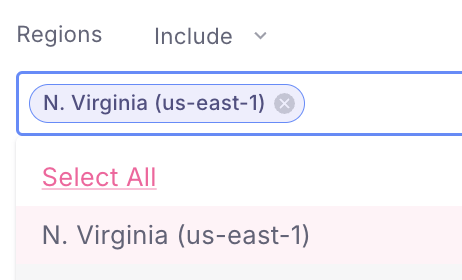
Open the Regions selection and select the N. Virginia region
Select the relevant accounts you would want to run on. You can also run on all accounts
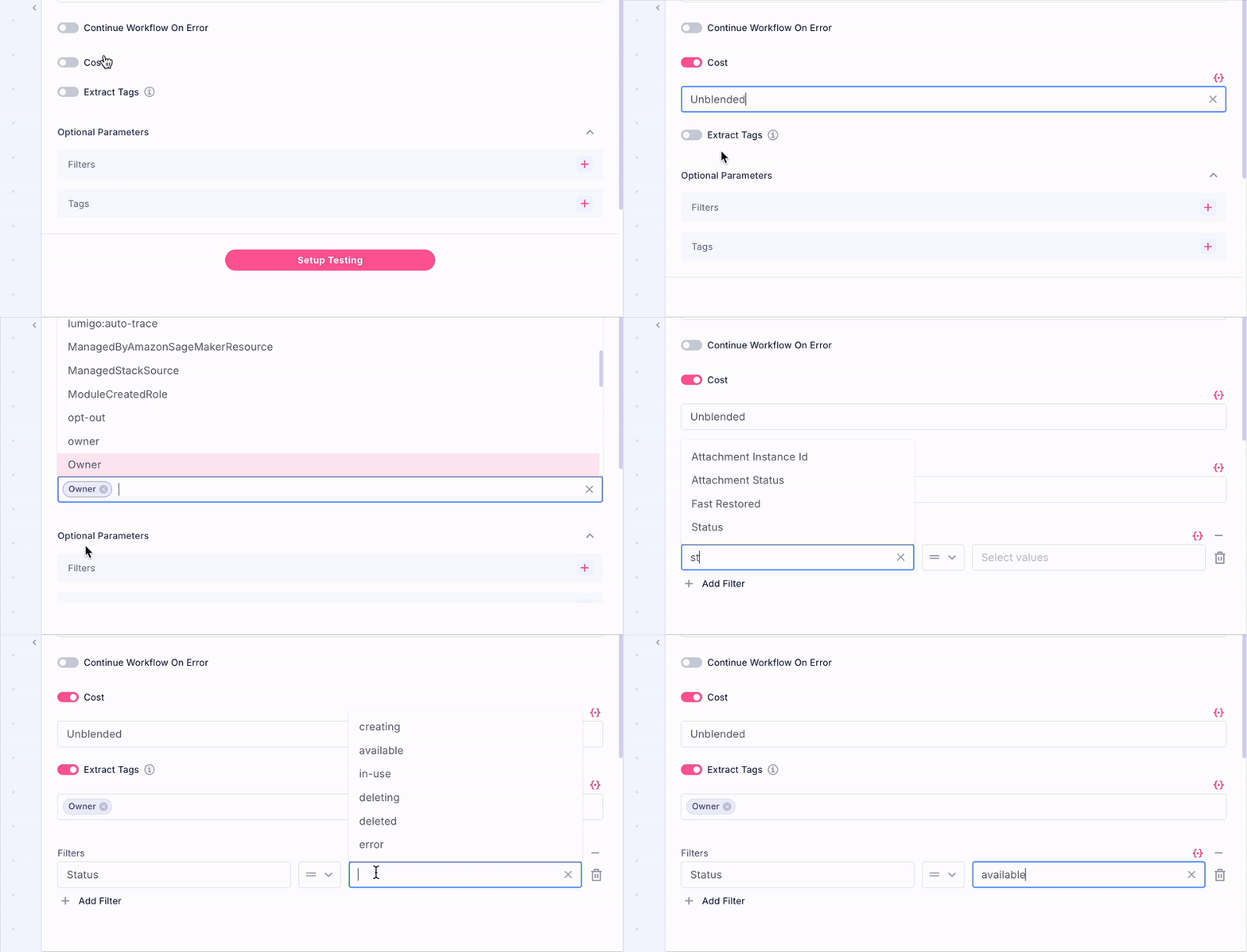
Add the Cost metric Unblended cost
Extract relevant tags on the volumes (if relevant)
Open the Filters optional parameter, and search for Status and select available. This will allow us to return only the detached EBS volumes.
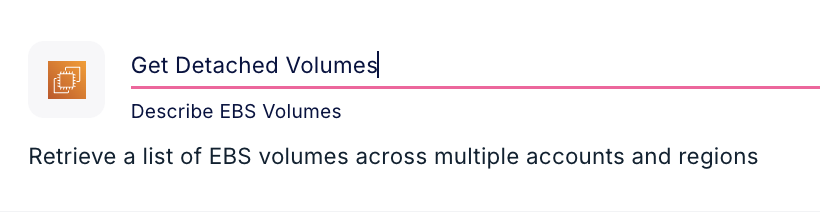
Rename the step to "Get_Detached_Volumes" by clicking the step name at the top of the inspector.
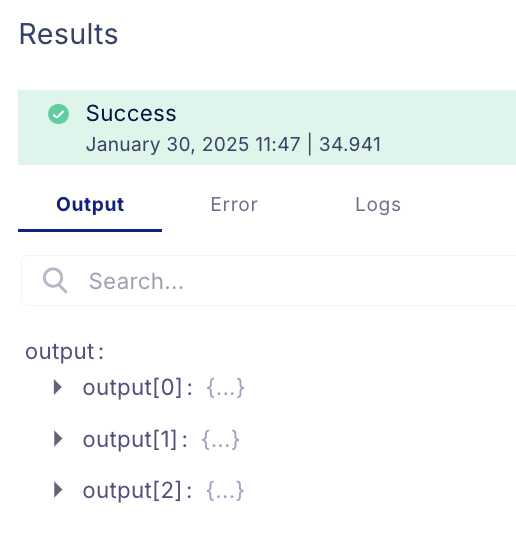
Press on Setup Testing. Make sure that the parameters are correct, and click on "Run Step" to make sure the function is working as intended. You should now see the result. If the step return an empty list, make sure you indeed have detached EBS volumes in that account and region.
Step 3: Loop Over the Unattached Disks
Add a Loop step to iterate over the retrieved unattached disk volumes.
Utilize the Tree Helper to select the output of the Get_Detached_Volumes step's volumes list
{{Get_Detached_Volumes.output}}
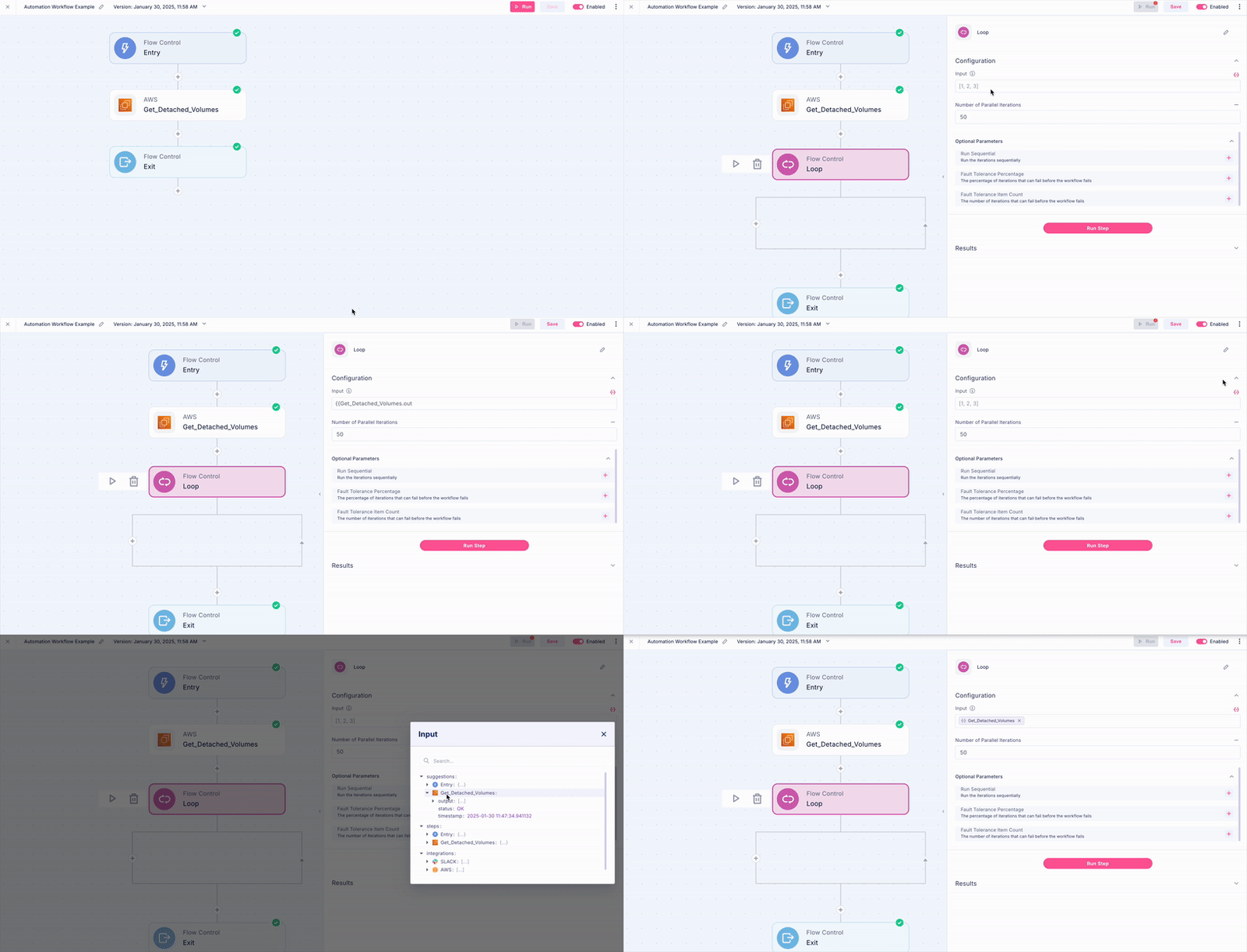
This will ensure that the loop iterates over each volume in the list retrieved earlier.
Within the loop, you can add specific actions or conditions to be performed for each volume, or Collect the relevant data.
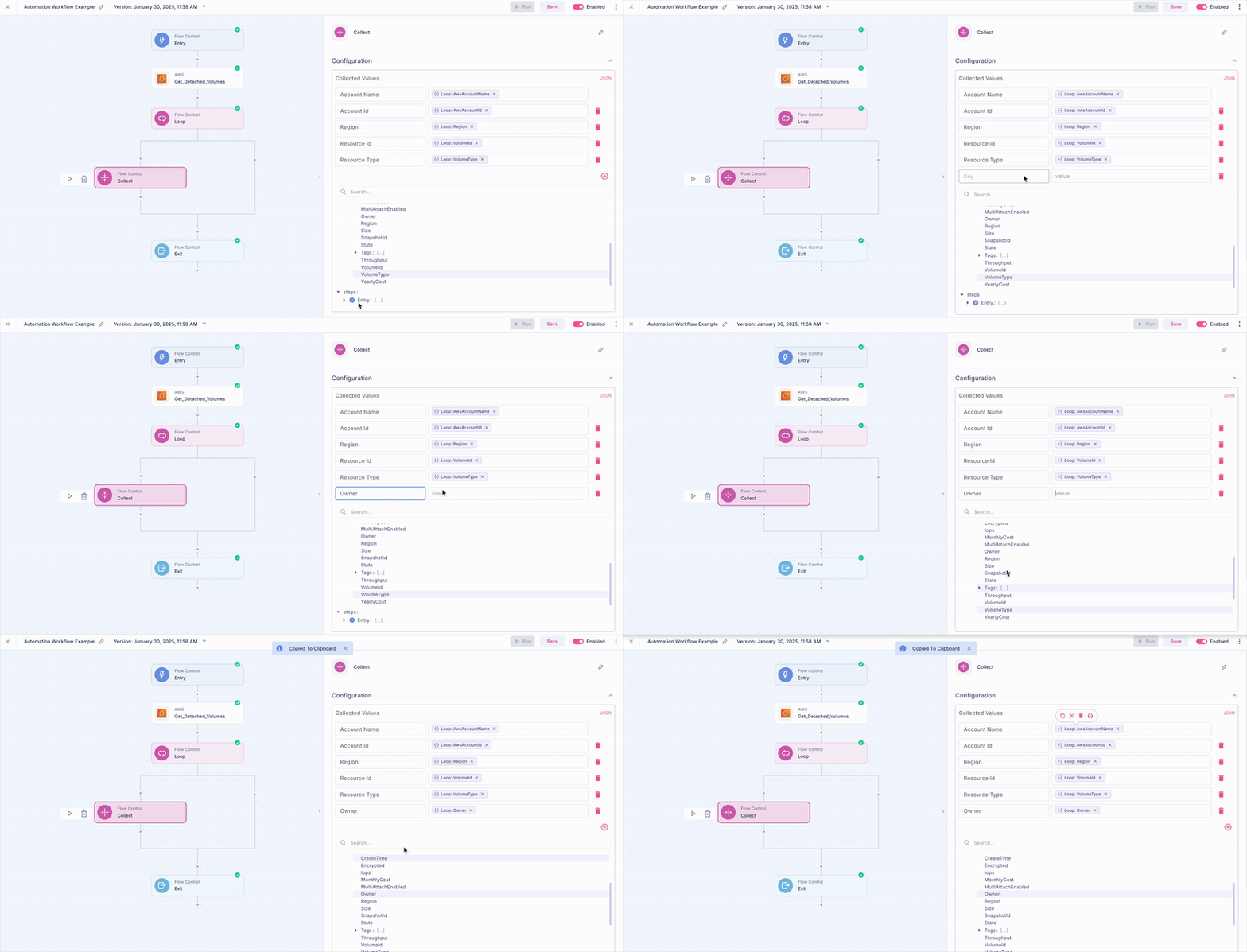
- Add a Collect step inside the loop.
- Press the (+) sign inside the scope of the loop, and select the Collect Step
- Collect the relevant fields from the Describe CLI response
- For the next step, because we want to write a Case we need to make sure we have the Account Id, Region, Annual Savings, and the Resource Id which are mandatory to open a case (used as the primary key)
Step 4: Create Cases
Now that we got all the data we needed, already filtered and processes with the right fields, we can create a Case in the platform, so we will be able to track our progress, calculate our realized savings, and more.
To create a case we will need to use the Write Cases step.
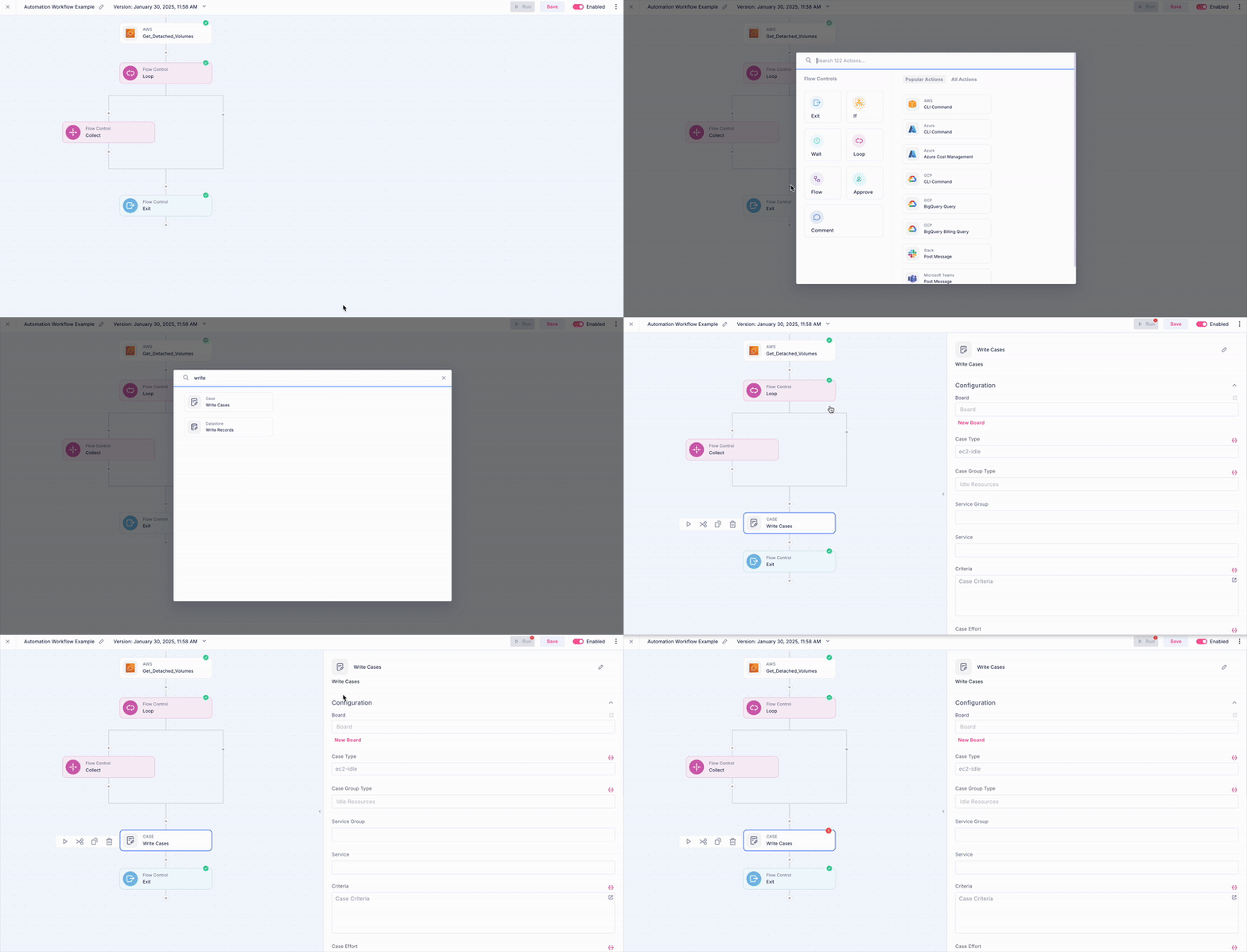
- After the Loop, add the Write Cases step
- Fill in the Board Name to write the cases (Or create a new board from the step)
- in the Case Type add "Detached EBS Volumes"
- The Group Type is Idle Resources, Service Group is Storage, and in the Service input you can write EBS (in case you can't find it just press Enter)
- The current Criteria should be "Detached EBS volumes that are not attached to any instance". Note that you can add any criteria based on your workflow logic.
- Fill in the mandatory fields we collected from the Collector and make sure they are the same keys you used
So, if my collector looks like this: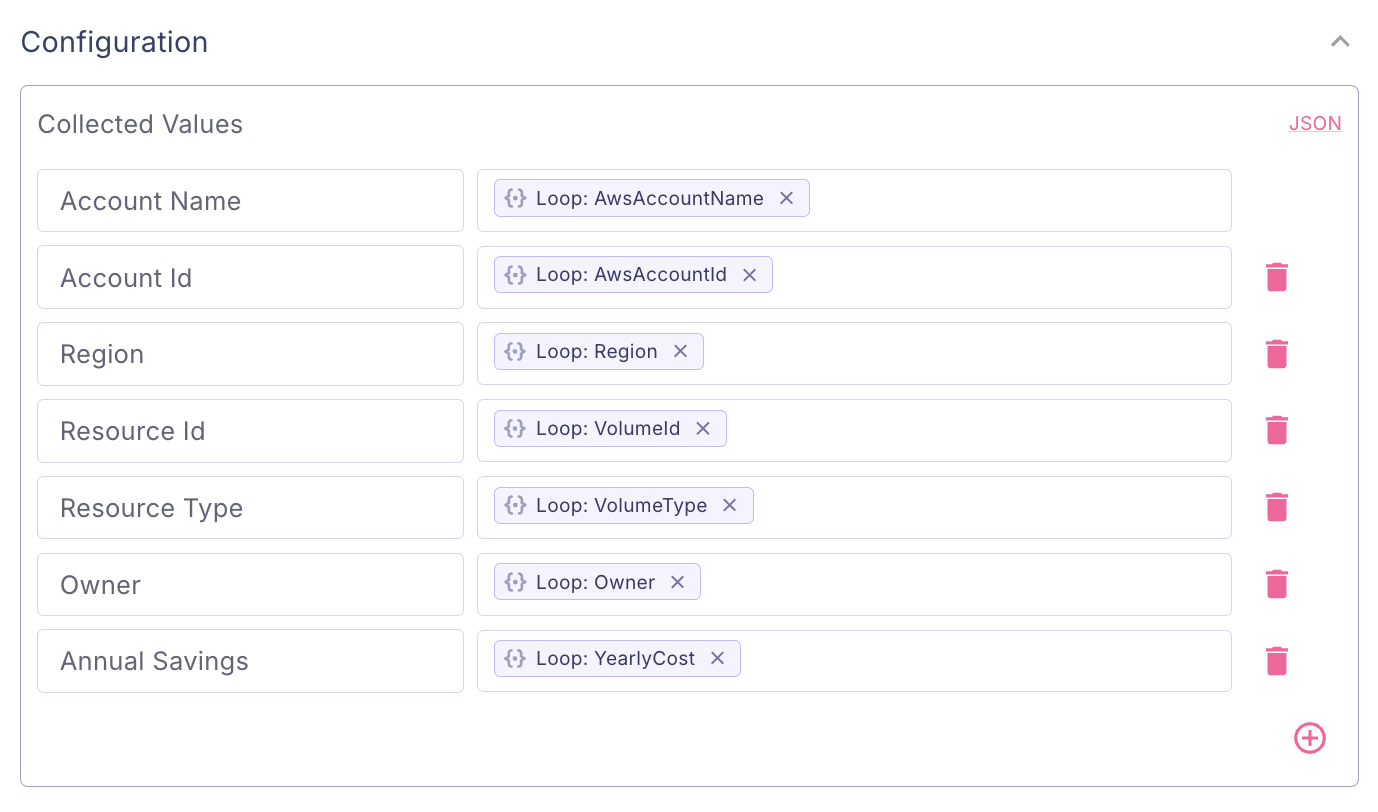
We will need to add the same fields in the Write Cases step. The field names are case sensitive, and they point the Write step to the right fields in your data structure that correlated to the annual savings, account id, region, and resource id. Note that if you already have the Owner allocation, you can map it as the Case Owner.
The Cases Data gets a List of items, in our case - the output of the Collector step.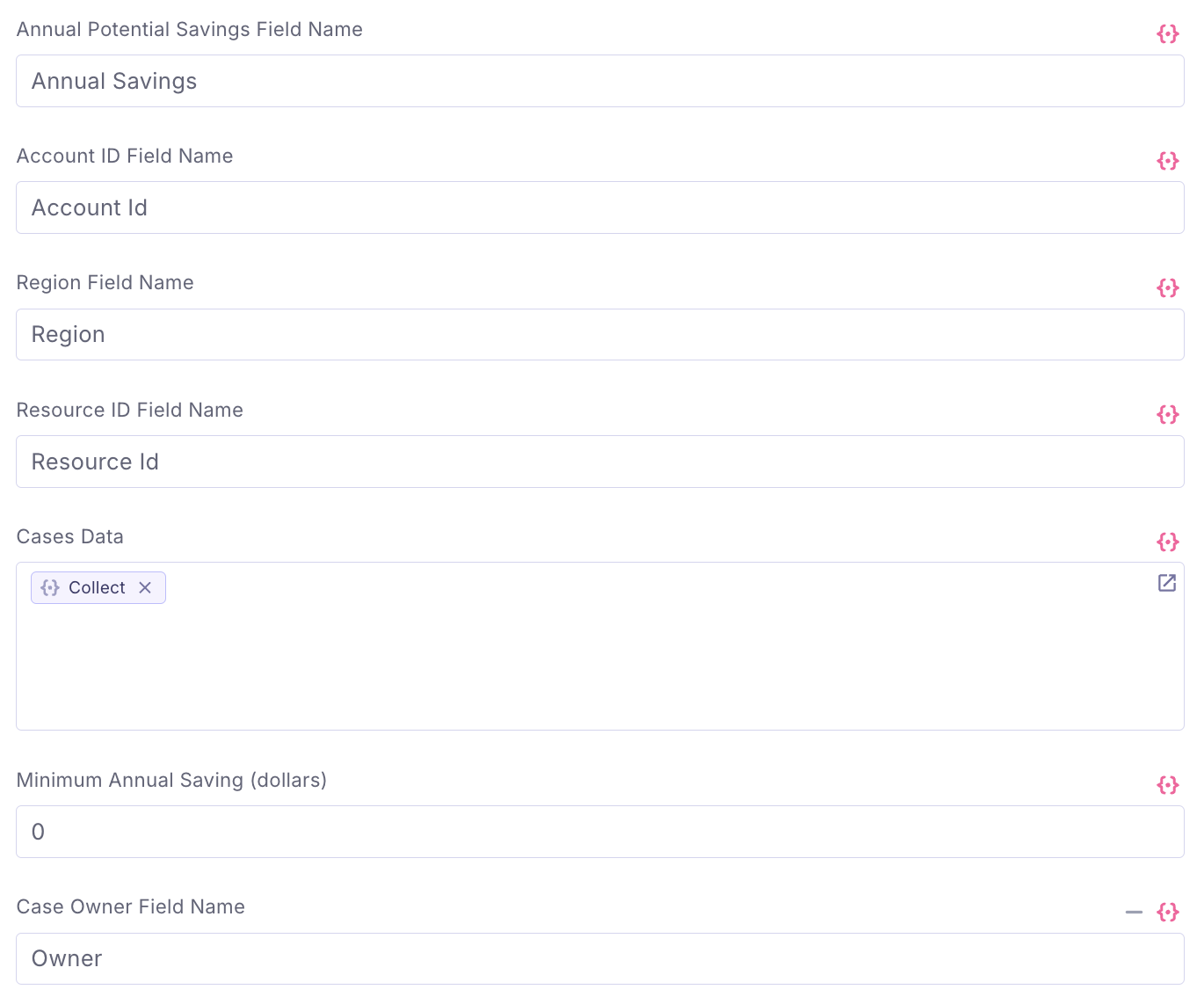
Step 5: Send an Email Notification
let's say we also want to send an email report with the items we just found.
To do so, we will add another step Send Email.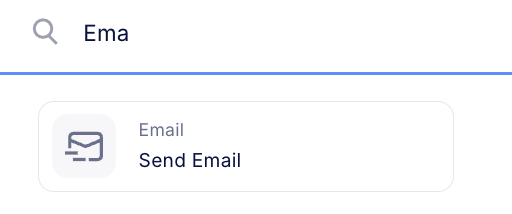
Press the (+) sign after the previous Write Cases step
Select the Send Email step
Add the relevant information, and as in the Write Cases step, use the output of the collector to add the relevant resources.
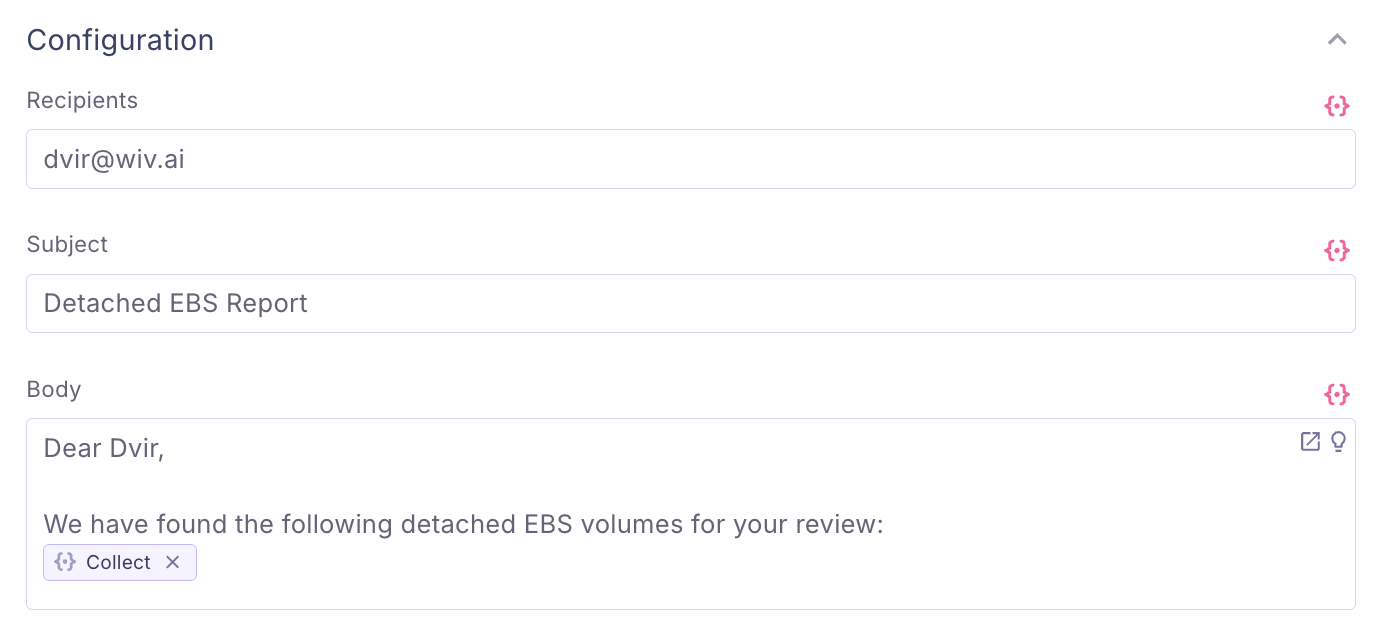
Don't worry, we know how to convert it to a table in the email.
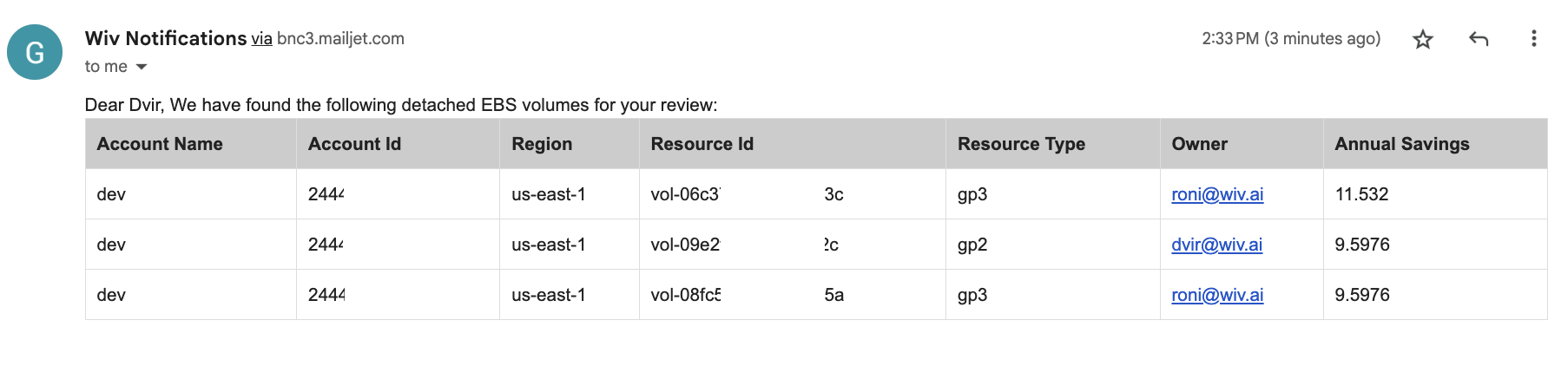
You can format the emails using HTML to send custom design emails
Summary
Congratulations on successfully implementing your first Wiv workflow automation! While this represents an introductory implementation, it demonstrates the robust capabilities of our platform in delivering customized FinOps automation solutions tailored to your organization's specific requirements, business objectives, and operational maturity.
Our platform's versatility extends across multiple domains, from cost optimization analysis and waste identification to automated remediation processes, comprehensive notification systems, advanced alerting mechanisms, and custom reporting solutions. The platform's flexible architecture empowers you to innovate and implement increasingly sophisticated FinOps strategies as your organization evolves.
We value your partnership and look forward to supporting your journey in leveraging automation to achieve operational excellence and cost optimization objectives. We're excited to see how you'll harness these capabilities to drive FinOps innovation within your organization. Welcome aboard!
Was this article helpful?
That’s Great!
Thank you for your feedback
Sorry! We couldn't be helpful
Thank you for your feedback
Feedback sent
We appreciate your effort and will try to fix the article