
Dashboards are essential components of any comprehensive FinOps platform, providing powerful visualization capabilities for cost optimization initiatives, expense tracking over time, and customized charts that integrate both cost and waste metrics. These versatile dashboard tools interact seamlessly with dynamic automation outputs (Workflows) and static data repositories (Datastores containing information such as budgets and ownership details), allowing you to create unified overviews of your multicloud environment by consolidating multiple data sources.
Our dashboard functionality empowers stakeholders to monitor cloud expenditures, identify optimization opportunities, and make data-driven decisions across complex cloud ecosystems.
Data Structure
Our dashboards require a list of items with the following keys:
[
{
"X Axis": Dates, Terms, Etc
"Y Axis": Measurement Metric
"Term": Distinct Label For Group By
}
]
* Mandatory fields
Distinct Values
When creating dashboards, ensure that each data item has a unique identifier. If you're grouping by a specific field, consolidate duplicate entries into single, aggregated values.

For instance, if you're grouping by "Region" and your dataset contains multiple entries for "us-east-1", the dashboard will only display the first instance it encounters. To avoid data loss, aggregate all duplicate entries before sending them to the dashboard.

Data sources
As specified, it can be either from a step output in a Workflow: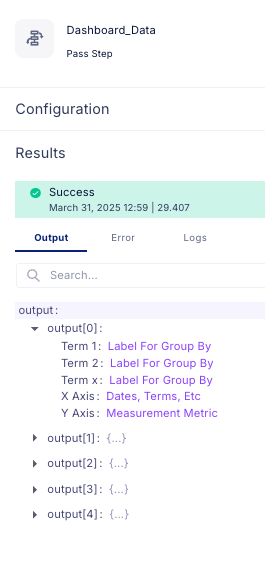
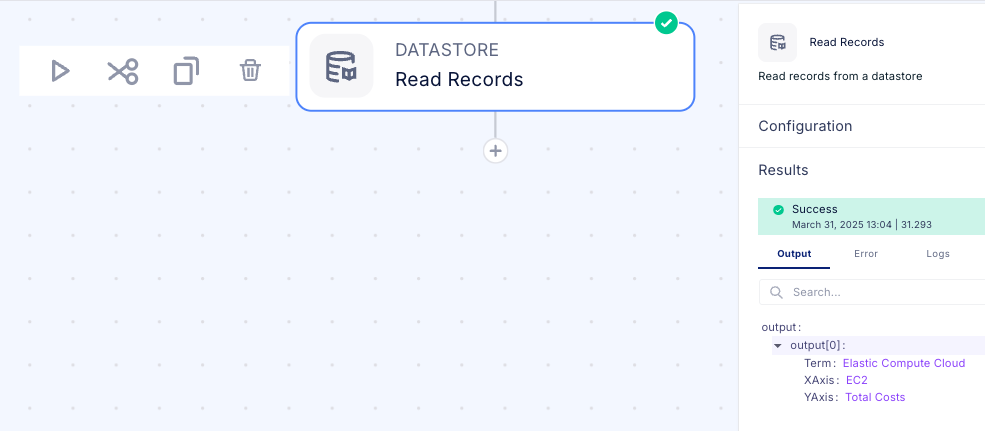
Or it can be from a Datastore
Creating a Multi-Cloud Cost Dashboard
Let's walk through building a multi-cloud dashboard in the Wiv.ai platform. We'll leverage our GCP and AWS integrations to gather cost data from each cloud provider, then consolidate this information into a unified dashboard that provides comprehensive visibility across your multi-cloud environment costs.
Our GCP and AWS integrations will pull in the necessary cost data, and we will enable you to create a single, cohesive dashboard that presents a complete view of your multi-cloud spending. This approach eliminates the need to switch between different cloud provider consoles, saving time and providing more consistent cost management across your entire cloud infrastructure.
Setting Up the Workflow
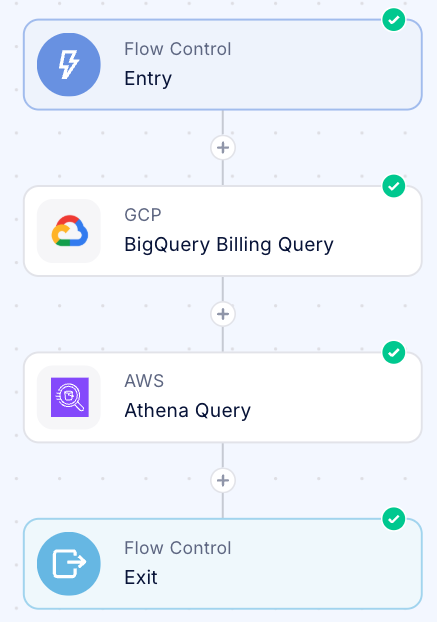
To gather the relevant information, we'll create a new workflow with the following steps:
- GCP Cost Query: We'll implement a query to the BigQuery billing table to extract GCP costs for the current month.
- AWS Cost Query: We'll set up a query to Athena to retrieve AWS costs for the current month.
This workflow will automatically collect the necessary cost data from both cloud providers, which we can then visualize in our multi-cloud dashboard.
GCP BigQuery Query:
SELECT
  DATE(usage_start_time) as usage_date,
  service.description AS service_name,
  SUM(cost) AS total_cost
FROM
  `{{billing_project_name}}.{{Your billing table}}`
WHERE
  invoice.month = "YYYYMM"
GROUP BY
  usage_date, service.description
AWS Athena Query
SELECT
  DATE(line_item_usage_start_date) as usage_date,
  line_item_product_code AS service_name,
  SUM(line_item_blended_cost) AS total_cost
FROM
  {{Your Billing Table}}
WHERE
  year(line_item_usage_start_date) = YYYY
  AND month(line_item_usage_start_date) = M
GROUP BY
  DATE(line_item_usage_start_date),
  line_item_product_code
When implementing these queries, ensure you replace the following dynamic elements: - Month and Year values to match your current reporting period - Table names to reference your specific billing tables in each environment This customization ensures your workflow accurately captures the most current cost data from your specific cloud billing tables.
After executing your workflow, you'll now have two output datasets from the completed steps. Both outputs share an identical structure with consistent mandatory fields, making them ideal for integration into a unified dashboard view.
These standardized outputs from your GCP and AWS queries provide a solid foundation for creating comparative visualizations across your multi-cloud environment. The consistent data structure ensures seamless aggregation and analysis despite the different underlying cloud platforms.
[
  {
    "service_name": XXXX,
    "total_cost": "0.00",
    "usage_date": "YYYY-MM-DD"
  }
]
Creating The Dashboard
Now we can go over to the Dashboards page. Make sure you're accessing the dashboards page from the same Space you created the workflow.
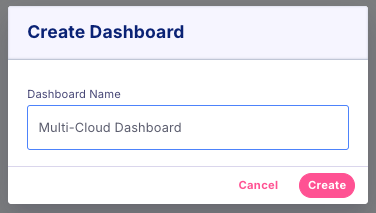
- Press on + New Dashboard button on the top right corner
- Name your dashboard and press Create
- Now you should see the new dashboard in the list of dashboards, press on your created dashboard to access the dashboard editor
- Wiv supports multiple types of dashboards, but for now we will need to add two charts. Press the Add Chart in the editor menu

- Let's call the first one AWS Costs and select the workflow we just build. One the steps are loaded, select the Athena step output.
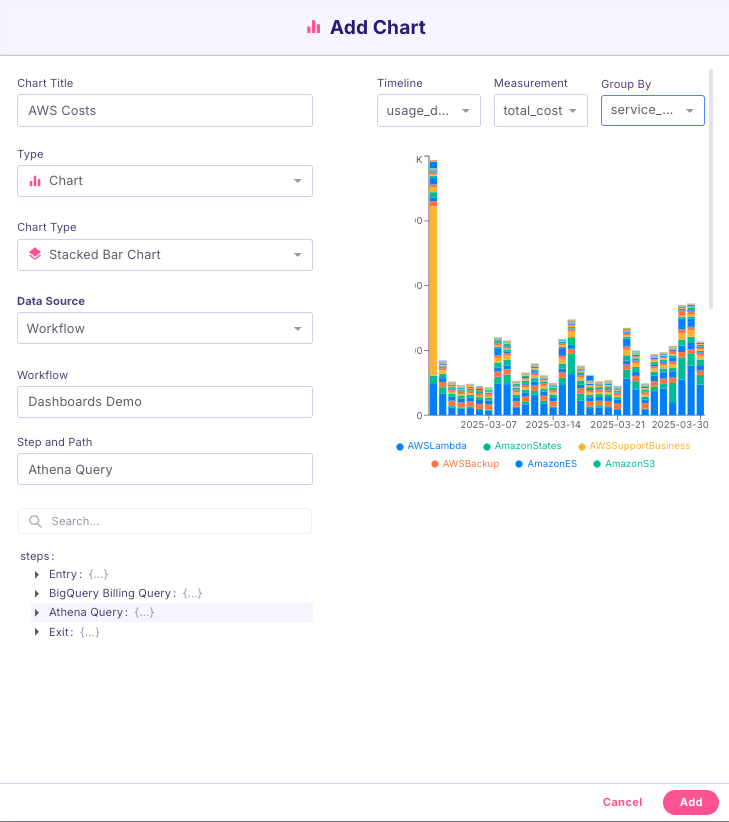 Based on the data structure, we want to adjust our keys:
- Timeline - usage_date
- Measurement - total_cost
- Group By - service_name
- Press Add to add the graph to our dashboard
- We will now do the same for GCP

- Press Save on the top right corner to save your dashboard
Summary
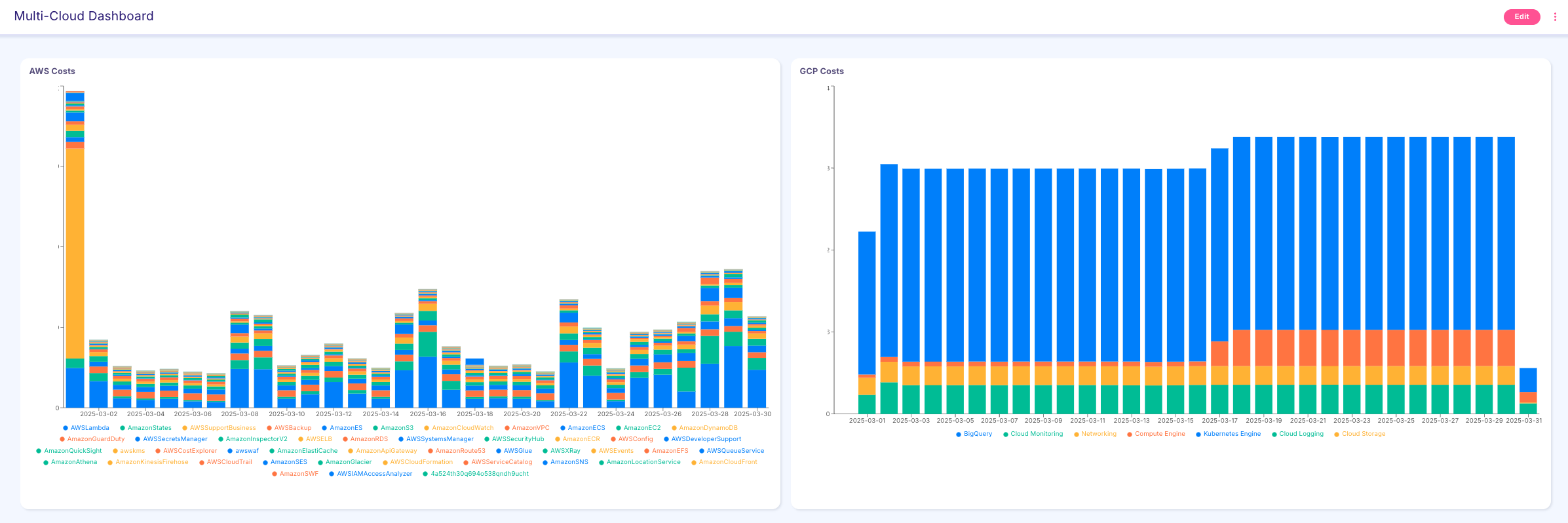
Dashboards are a critical tool in your FinOps journey. They provide valuable insights into costs, help manage waste, showcase actual realized savings from the Wiv.ai platform, and deliver numerous other benefits. What truly distinguishes our platform from competitors is the unparalleled flexibility in data visualization.
With Wiv.ai, you have complete freedom to select your data sources, visualization vectors, and the specific business metrics you want to monitor. The platform's key advantage lies in its ability to visualize any workflow output, regardless of complexity, and it is not limited to financial information. When you realize that any information gathered through any workflow can be visualized over time or filtered according to your custom business logic, the possibilities become virtually limitless.
This powerful combination of flexibility and functionality transforms your dashboard management from a challenging task into a strategic advantage for your organization.
Was this article helpful?
That’s Great!
Thank you for your feedback
Sorry! We couldn't be helpful
Thank you for your feedback
Feedback sent
We appreciate your effort and will try to fix the article