Overview
The Post Message and Post Reply To Message Steps allows you to communicate with your engineering teams, and reply to a specific message within a thread on Slack during a workflow execution. By posting new messages and using threaded replies, you can preserve context and keep discussions focused within specific topics.


As a usage example, after an Approve step triggers an automated action, you can integrate Slack notifications to keep your team informed that. The automation can send messages to confirm both the initiation and completion of the automated process within the same context, providing real-time status updates.
Workflow Example

Here's a real-world example of implementing Slack notifications in your automation:
Consider an automated workflow that safely decommissions EC2 volumes by first creating an EBS snapshot before termination. To keep your approver informed throughout this process, you can structure your Slack communications as follows:
- Once approved, the automation initiates with a main Slack message notifying the approver that the process is beginning by using the Post Message step
- The system creates and completes the EBS snapshot (handled automatically by the platform)
- A threaded reply updates the original message to confirm the snapshot's completion by using the Post Reply To Message step
- The volume deletion process executes
- A final threaded reply notifies the approver that the volume has been successfully terminated
And the output:

Using the Slack Communication
Using Post Message Step
Obtaining the Message Id - Each Post Message Slack Step in your workflow returns the message_id of the sent message. You can use this message_id in the subsequent Post Reply To Message Slack Step to send a reply to that specific message.
To access the message_id returned by a 'Post Message' Slack Step:
Add a Post Message Slack Step to your workflow and configure it to send a message to the desired channel.
After the Post Message Slack Step, you can access the
message_idusing the appropriate variable or output mapping{{Post_Message_Step_Name.output.message_id}}Use the obtained
message_idas the input for the Post Reply To Message Slack Step to send a reply to that specific message. Using the example above:
Requirements for Post Reply To Message
To use the Post Reply To Message Slack Step, you need to have:
A Slack account integration with the necessary permissions to send messages.
The
message_idof the Slack message you want to reply to
Using Post Reply To Message Step
- Add the 'Post Reply To Message' Slack Step to your workflow.
- Configure the step by providing the following information:
- Integration: Select the same Slack integration you want to use for sending the reply as you used in the Post Message step
- Channel: Specify the Slack channel where the message you want to reply to is the same as the Post Message step
- Message ID: Provide the
message_idof the Slack message you want to reply to. This ID can be obtained from the previous 'Post Message' Slack Step in your workflow as mentioned above - Reply Message: Enter the content of your reply message. You can include plain text, mentions, links, or any other supported Slack formatting
- Save the step configuration.
- When the workflow is triggered and reaches the 'Post Reply To Message' Slack Step, it will send the specified reply message as a response to the message identified by the provided
message_idwithin the thread.
Based on the example above: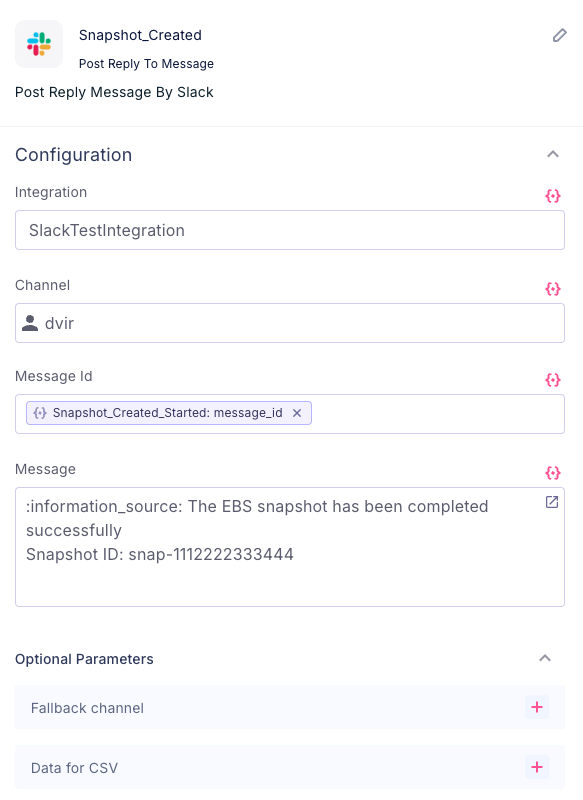
Was this article helpful?
That’s Great!
Thank you for your feedback
Sorry! We couldn't be helpful
Thank you for your feedback
Feedback sent
We appreciate your effort and will try to fix the article