Overview
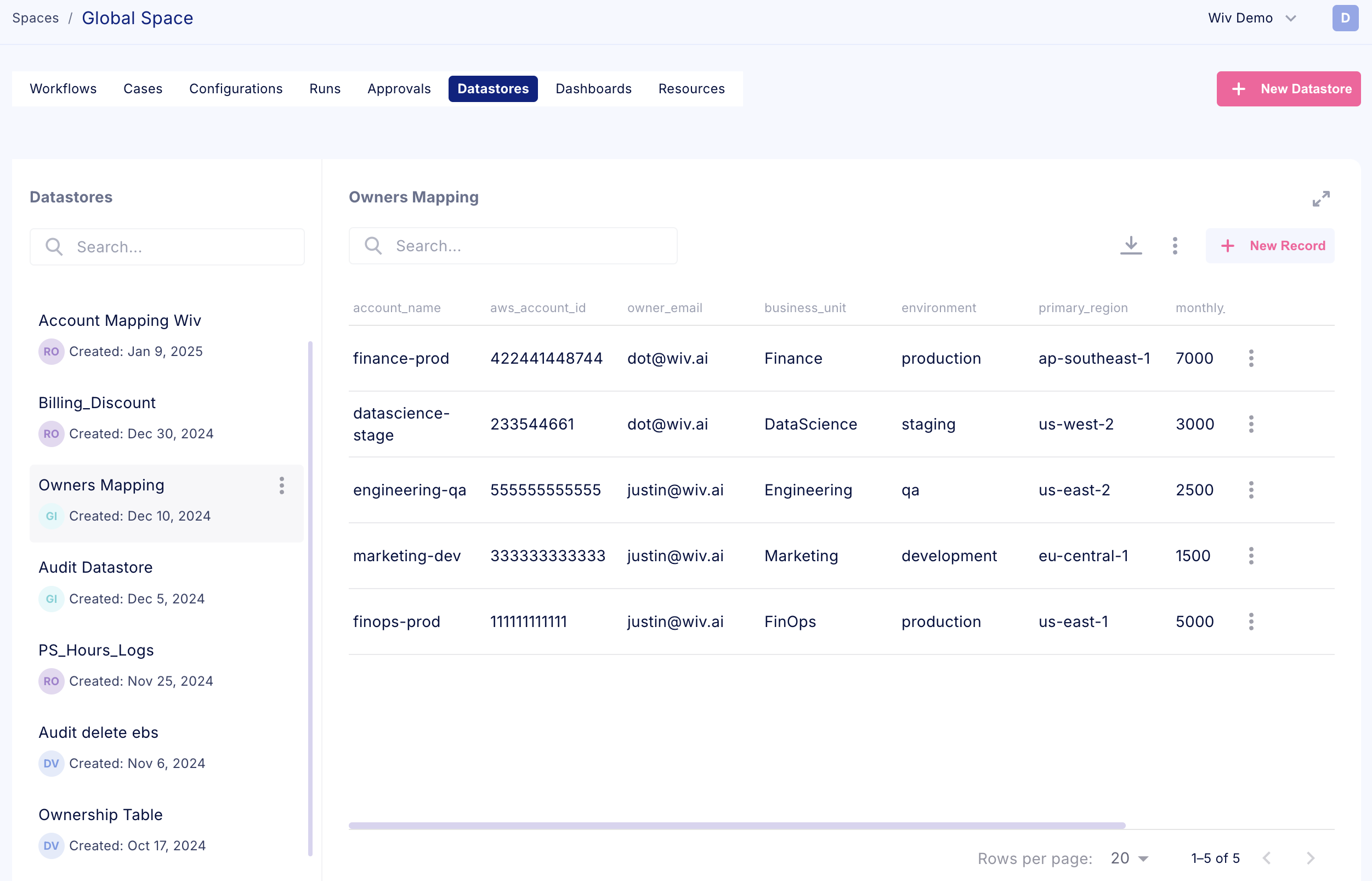
Datastores function as dedicated database tables within our platform, providing customers with versatile data management capabilities. These internal database structures enable organizations to maintain centralized information repositories for various operational needs. Organizations can leverage datastores to establish audit trails, manage custom pricing data, maintain ownership records, and support numerous other data storage requirements. This centralized storage architecture ensures efficient data accessibility and reference capabilities throughout your operations.
By utilizing datastores, teams can create persistent, organized repositories of critical information that support ongoing operations and historical analysis. This centralized approach to data management enhances operational efficiency and maintains consistent access to essential business information.
Did you know?
The id field is a reserved database key designated for unique record identification. While you may include an id field in your schema definition, please note that our platform automatically treats this as a read-only property and excludes it from the user interface display.

Recommendation: If you require a visible unique identifier in the UI, please use an alternative field name such as unique_id or another descriptive key. These custom field names will be displayed normally in the interface.
Creating a new Datastore
We can create a new datastore using two methods
- From the Datastore page in a Space - Navigate to the relevant space and create a New Datastore
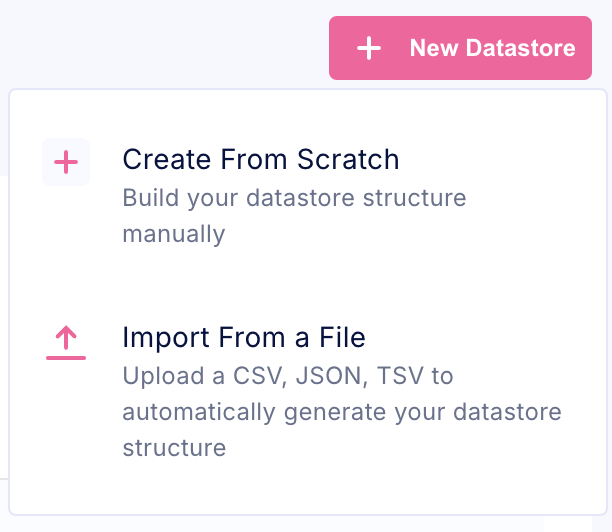 You can select to create your datastore schema from scratch, or import a supported file
 - Directly from a Workflow using the dedicated Datastore steps
The Write Records step provides flexible datastore management functionality. Users can either select an existing datastore for data population or create a new datastore directly within the step interface. This integrated approach streamlines the process of data storage and management, allowing seamless creation and population of datastores during workflow creation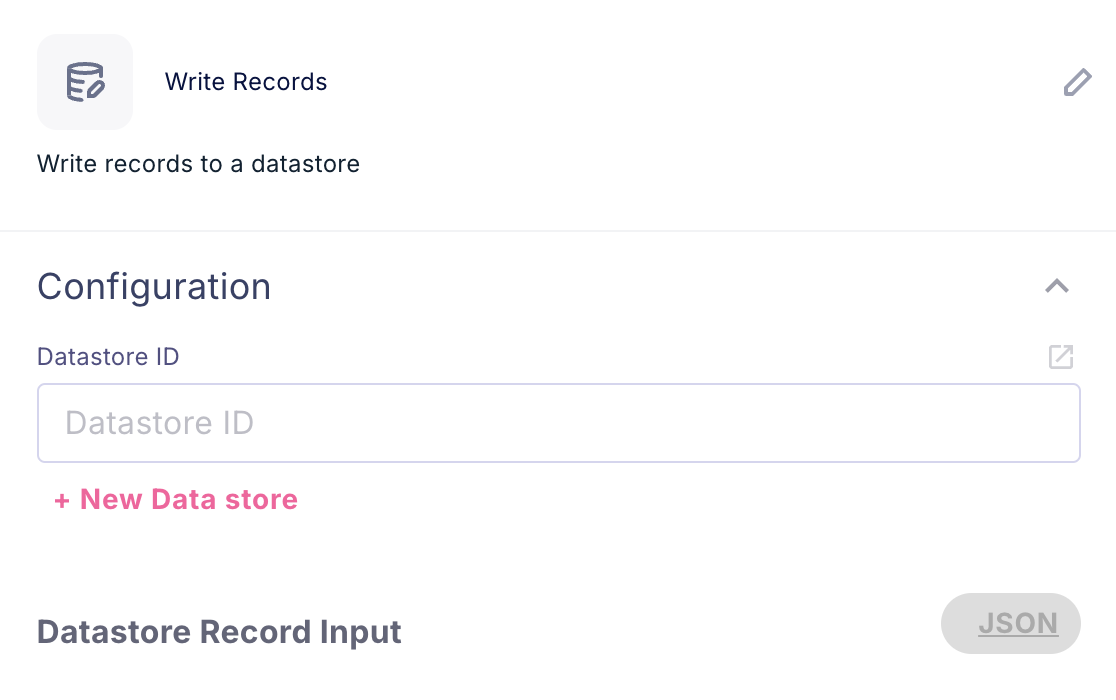
When selecting the +New Data Store button, a creation dialog appears requesting essential configuration details. This interface requires input of the Datastore Name and definition of the table schema. These specifications establish the foundation for your new data storage structure within the platform.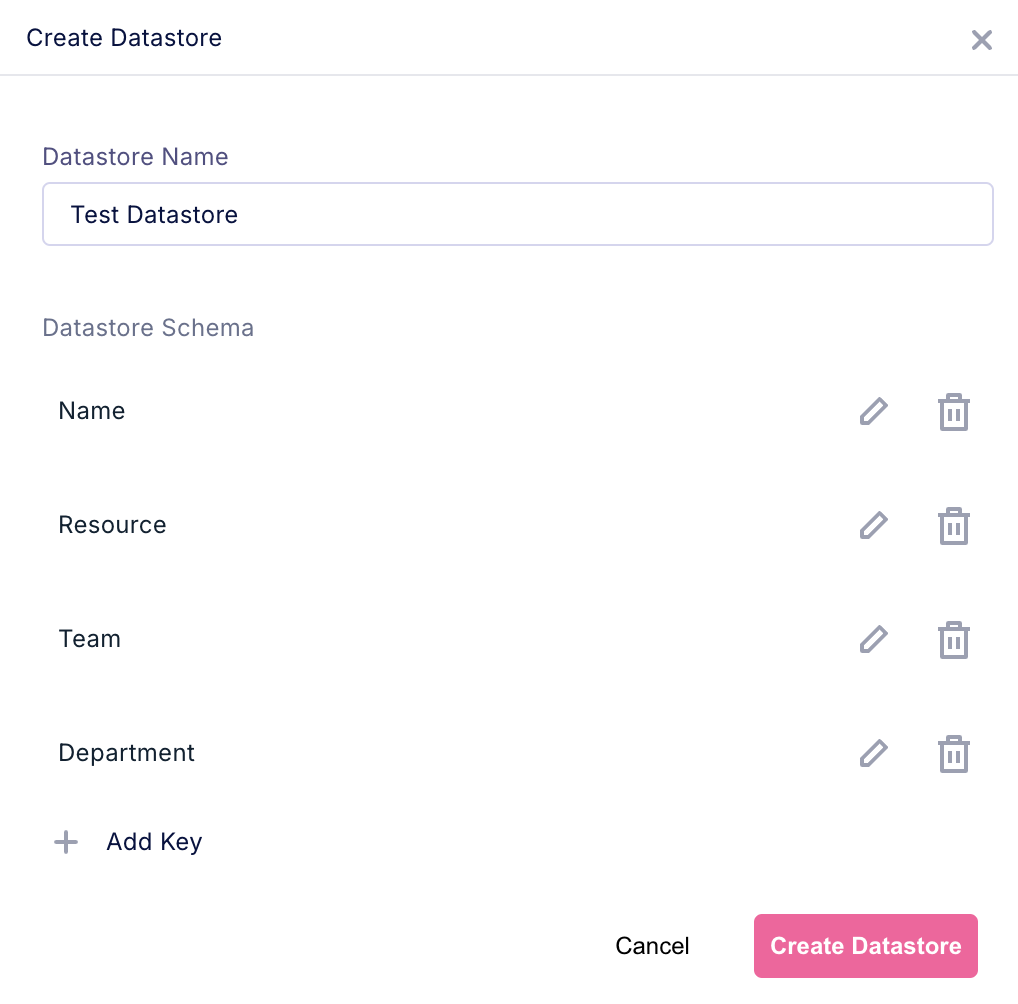
Working with Datastores
Datastores extend beyond simple data viewing capabilities through the dedicated Datastore page within a space. Their primary value lies in enabling dynamic data operations through workflow automation. The platform provides comprehensive data manipulation capabilities through specialized workflow steps, allowing automated interaction with your data collections.
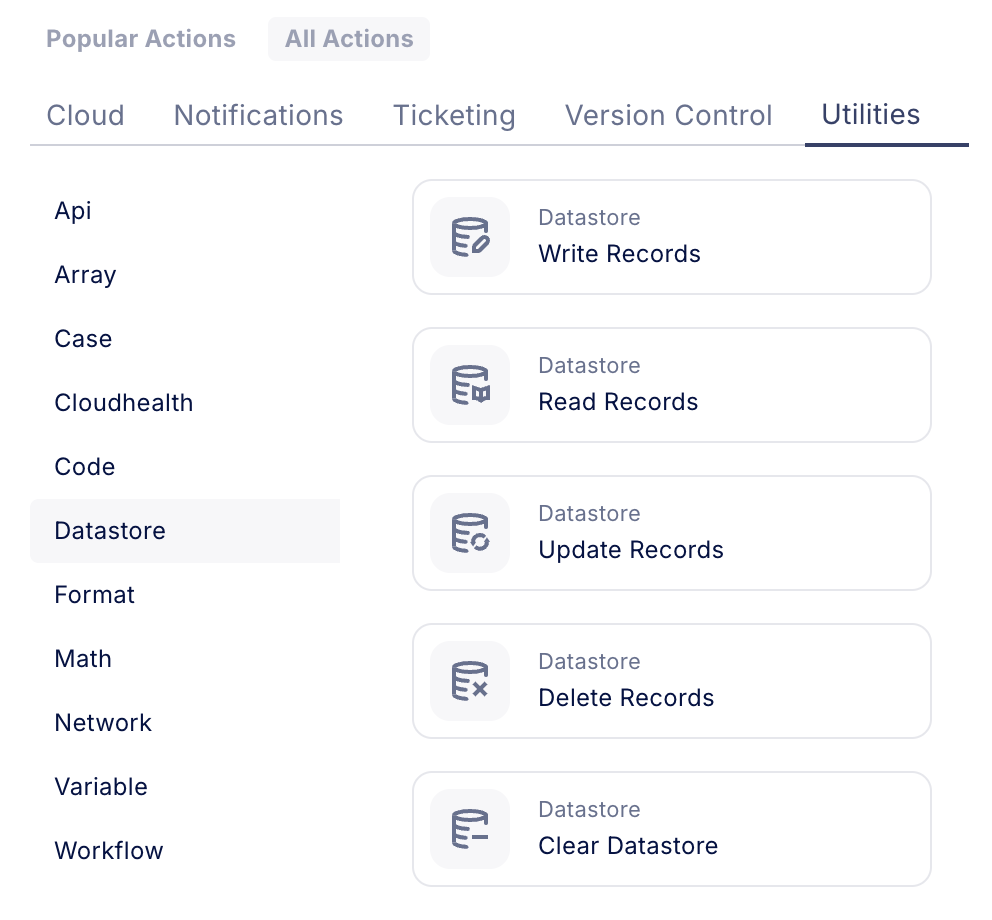
These workflow steps facilitate sophisticated data operations including filtered record retrieval, selective column reading, and bulk data writing using structured JSON formatting. This automation-driven approach to data management enables seamless integration of datastore operations within your broader workflow processes, ensuring efficient and systematic data handling across your organization's operations.
Datastore Write Overview
For example, if I have a json structure like this:
[
  {
    "Account Id": "1111222233334444",
    "Account Name": "Production",
    "Owner Email": "dvir@wiv.ai",
    "Owner Name": "Dvir Mizrahi"
  }
...
]
And I have a datastore with this exact schema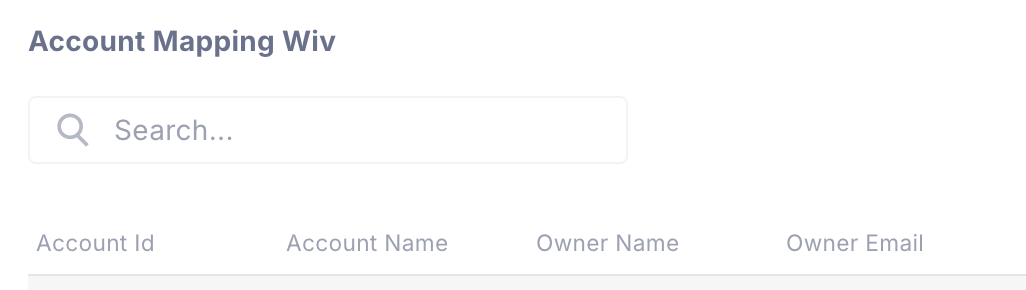
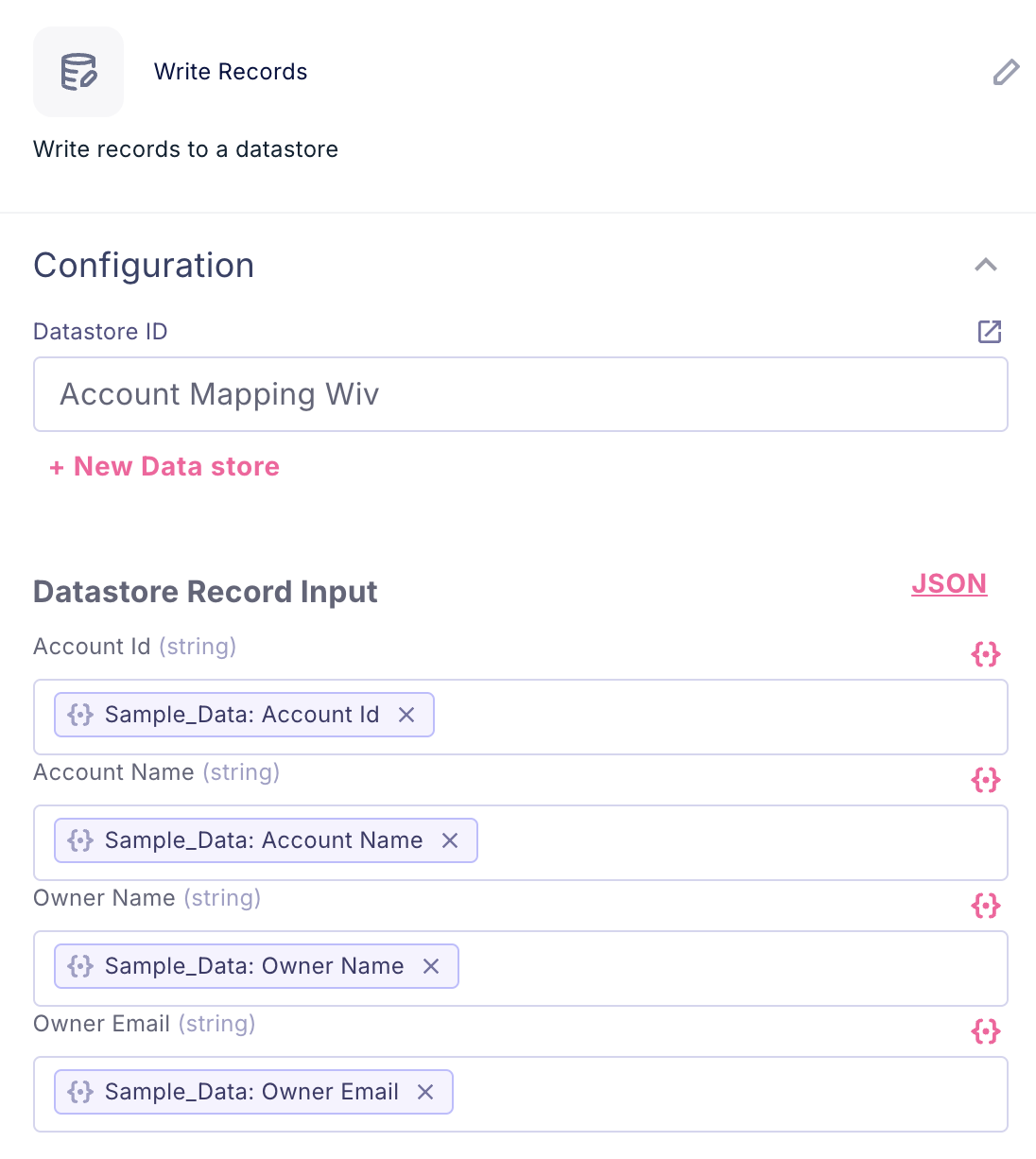
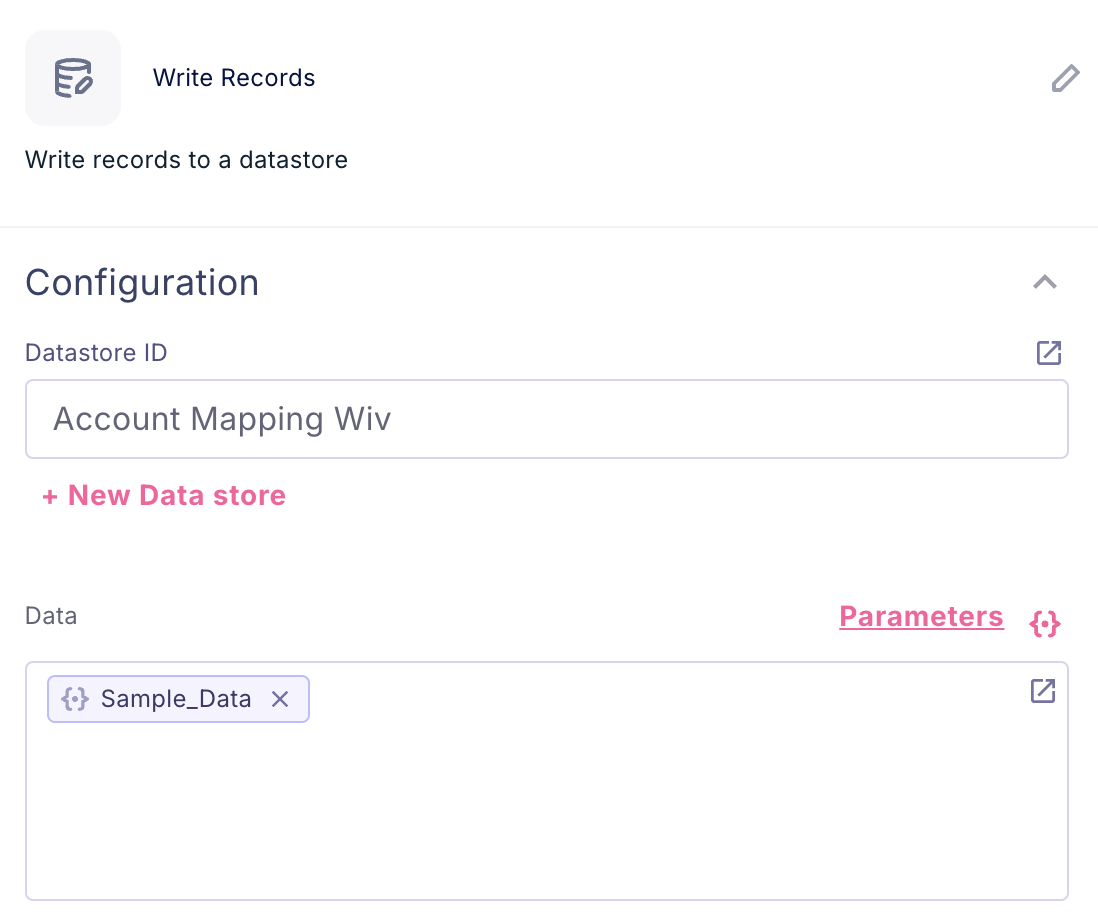
The Write Records step enables data population in one of two ways:
- Using the Parameters - This approach allows direct value assignment for individual list items during loop iteration. By utilizing parameter mapping, you can systematically populate your datastore with values derived from workflow execution, ensuring precise and controlled data insertion into your storage structure.
- Using Json - The Write Records step supports bulk data processing through JSON-formatted input. This method enables efficient handling of complete data lists, allowing simultaneous processing of multiple records. By transmitting structured JSON data, you can execute batch write operations, streamlining the process of populating your datastore with comprehensive datasets.
Edit Existing Datastore
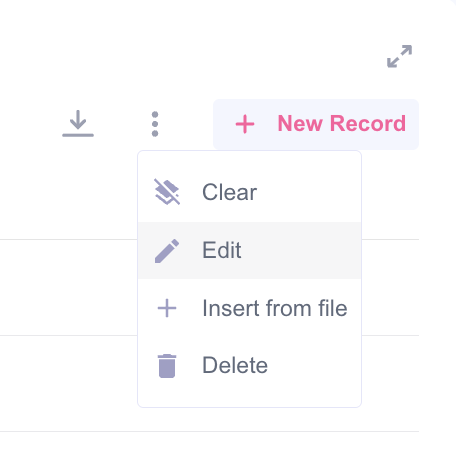
- To edit datastore schema, you can use 3-dot menu and press Edit
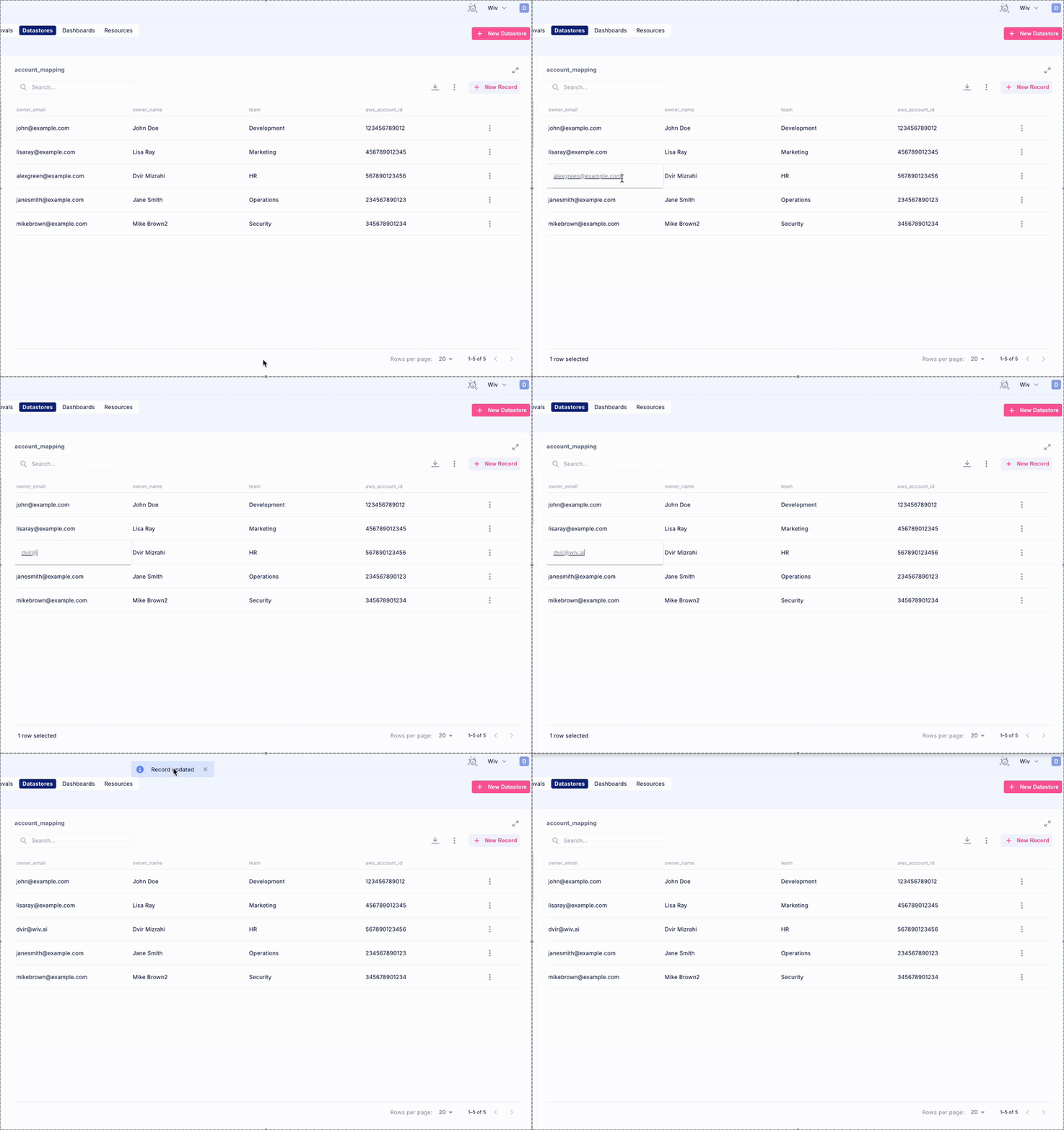
- To edit records, just double click on the field you want to edit
Was this article helpful?
That’s Great!
Thank you for your feedback
Sorry! We couldn't be helpful
Thank you for your feedback
Feedback sent
We appreciate your effort and will try to fix the article