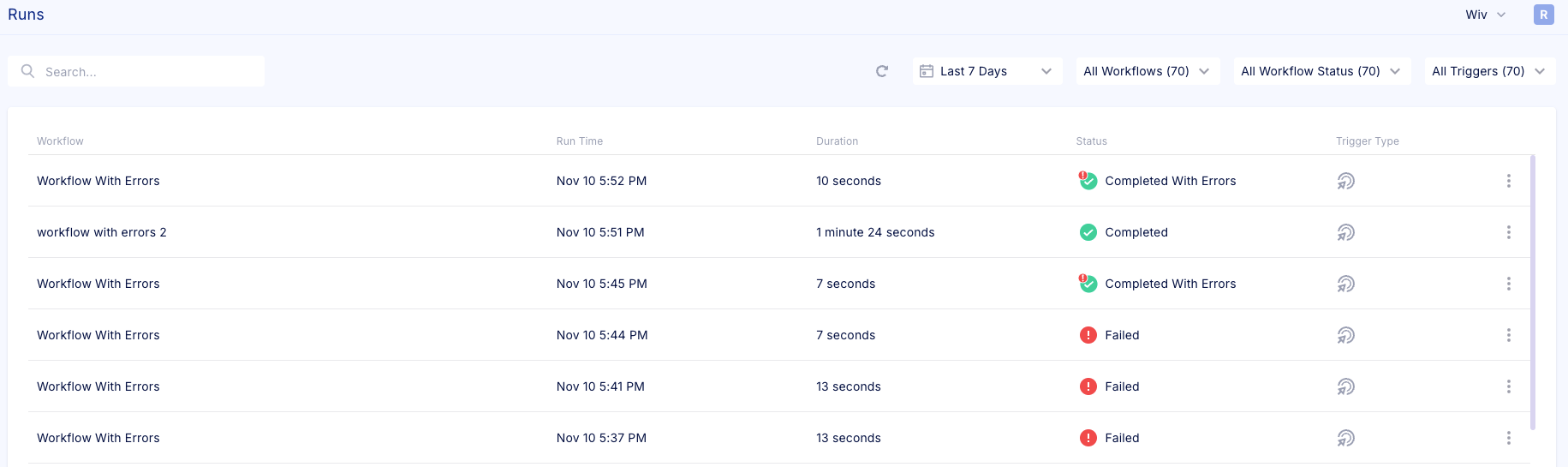
The Runs Page provides a comprehensive view of all workflow executions, allowing users to monitor and analyze the performance and status of their workflows in real-time. This page includes a table with essential details for each workflow run:
• Workflow Name: The name assigned to the workflow.
• Run Time: The exact date and time the workflow was initiated.
• Duration: The total time taken for the workflow to complete or fail.
• Status: The current or final state of the workflow, indicating its completion, errors, or interruptions.
Workflow Statuses
The Monitor Page supports seven possible statuses for workflow runs, each representing a specific outcome or state of the workflow:
Running: The workflow is currently executing its steps. This status indicates that the workflow is actively processing tasks and has not yet completed.
Completed: The workflow has successfully finished all steps without critical issues.
Warnings: In some cases, the workflow may include warnings (e.g., if a combo step includes unsupported regions).
These warnings are non-blocking and are visible in the Inspector panel for further review.
Completed with Errors: The workflow completed, but some steps encountered issues.
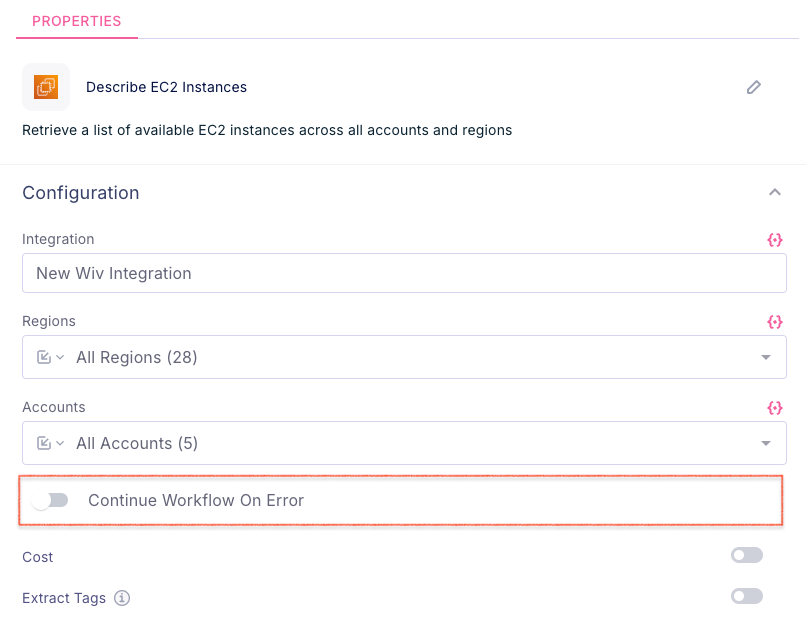
Continue on Error: If the user enabled “Continue Workflow on Error” for certain steps (typically in loops where permission issues might arise), the workflow will proceed despite errors. This setting is often used to avoid stopping the entire workflow due to minor errors in specific iterations.
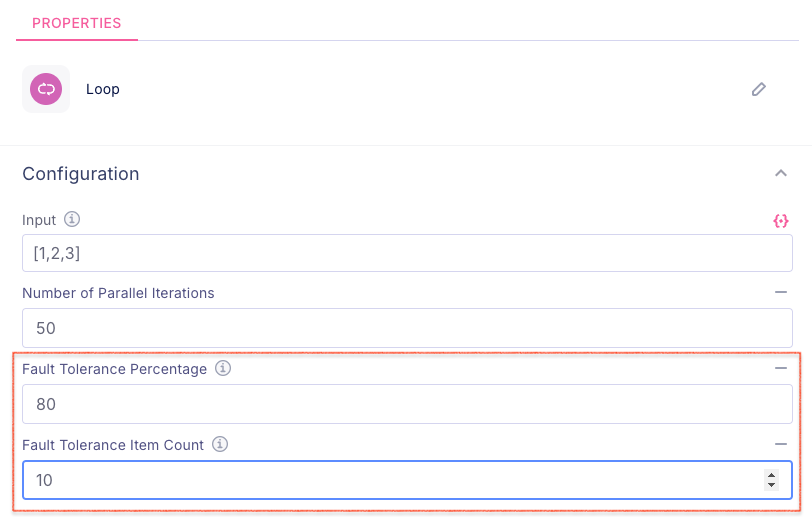
Tolerance for Loop Failures: If a tolerance threshold is set for loop iterations (e.g., allowing a certain percentage of failures), the workflow can still complete even if some iterations fail. Errors are grouped for easier review and can be viewed in detail.
Failed: The workflow encountered a critical error that prevented it from completing. This status indicates a complete failure, and users should review the error details to identify and address the issue.
Stopped: The workflow was manually interrupted by the user. This action stops the workflow execution immediately, and no further steps will be processed.
Waiting: The workflow is paused, awaiting approval or an external input to continue. This status is common when workflows include approval steps, where user intervention is required before proceeding.
Detailed View and Insights
The Monitor Page allows users to click on any workflow entry to access a Detailed View. This view provides in-depth information about the workflow, including:
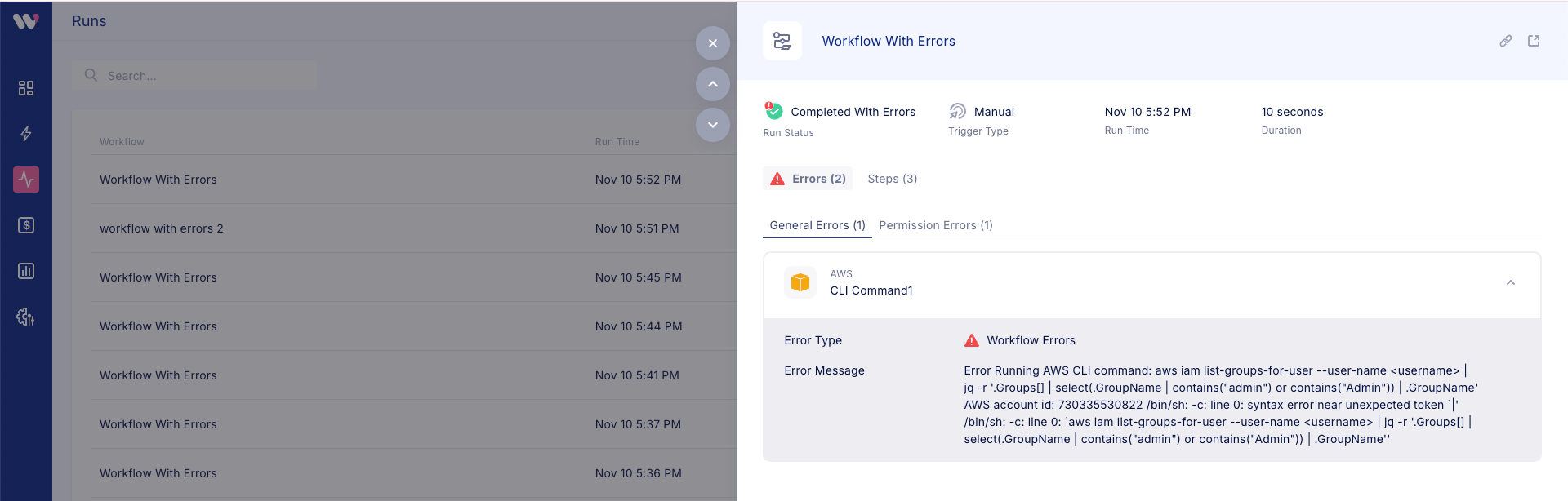
Error Details: A categorized view of any errors that occurred, divided into general and permission errors.
Inspector Panel: This panel offers a closer look at specific steps within the workflow, displaying warnings, errors, and other step-level information.
Subworkflow Details: If the workflow contains subworkflows, this view shows their execution details, allowing users to trace errors or issues within nested workflows.
Loop Context: In cases where workflows use loops, users can see the loop context, with information on each iteration, including any specific errors or successes.
Was this article helpful?
That’s Great!
Thank you for your feedback
Sorry! We couldn't be helpful
Thank you for your feedback
Feedback sent
We appreciate your effort and will try to fix the article